Mobile devices are essential tools for staying connected. For many individuals, changes in physical ability can make using these gadgets challenging. This guide offers a clear path to a more comfortable digital life.
We will explore how to customize your device to reduce physical strain. The goal is to maintain full control and independence. Simple adjustments can make a significant difference in your daily experience.
This information is valuable for users themselves or for family members assisting with setup. The steps are straightforward and apply to both iPhone and Android platforms. You do not need technical expertise to follow along.
The focus is on practical solutions that address common issues. These include improving readability and minimizing accidental screen touches. The result is less fatigue and greater satisfaction with your technology.
Key Takeaways
- Customizing your mobile device can significantly reduce physical discomfort during use.
- Simple adjustments help maintain complete control over your phone’s functions.
- These changes are easy to implement on both iPhones and Android devices.
- The goal is to enhance the user experience without losing any functionality.
- Family members can easily help optimize a device for comfort and accessibility.
- Practical solutions can lead to fewer mistakes and less hand strain.
- Staying connected with loved ones becomes a more enjoyable and effortless activity.
Understanding Hand Strain and Aging Smartphone Use
Physical changes can make routine technology interactions surprisingly difficult. Many people experience joint pain and reduced grip strength when using their phone. These conditions affect daily device operation.
According to global health data, 16 percent of the population lives with disabilities. Age-related changes create additional challenges for technology use. Understanding these needs is essential for better experiences.
Research shows that 72 percent of users report poor experiences with accessibility features. This highlights the gap between available tools and practical implementation. Common issues include difficulty pressing small buttons and accidental screen touches.
Eye strain from small text and fatigue from holding devices are frequent concerns. Recognizing these physical demands helps appreciate why customization matters. Proper configuration transforms frustration into comfortable interaction.
Family members and caregivers play a crucial role in addressing these challenges. They can help optimize the device to match individual physical conditions. The result is reduced strain and improved daily experience.
Adaptive Smartphone Settings for Aging Hands
Contemporary phones contain specialized functions that can transform the user experience for better comfort. These built-in features address common challenges like small text and complex navigation.
Both major mobile platforms offer comprehensive adjustment options. The accessibility settings provide solutions for various physical needs.
Available tools include text enlargement, voice commands, and touch modifications. These features work together to create a more forgiving interface.
The key is personalization—not everyone requires the same level of assistance. Some benefit from simple font changes while others need complete interface simplification.
Family members often help discover and activate these helpful settings. This overview prepares for detailed configuration instructions in upcoming sections.
Exploring Accessibility Features on iPhone
Apple’s iOS includes powerful tools designed to simplify interaction for users seeking a less complex interface. These features help create a more manageable digital environment.
The system offers a dedicated mode that limits apps and enlarges visual elements. This focused approach reduces clutter and potential confusion.
Setting Up Elder Mode and Assistive Access
Activating this simplified mode is a straightforward process. Begin by opening the Settings app and navigating to Accessibility.
Select Assistive Access and tap “Set Up Assistive Access.” You will associate an Apple account for security. Next, choose a layout for the screen.
Select only the essential apps the user needs daily. Finally, set a passcode to control entering and exiting this mode.
To leave Assistive Access, press the side button three times. Enter the passcode to return to the standard iPhone interface.
| Layout Option | Visual Style | Best For |
|---|---|---|
| Rows | Apps listed vertically with emphasized text | Users who prefer reading lists |
| Grid | Larger icons arranged in a familiar grid | Those who recognize apps by image |
Customizing Layouts and Icon Sizes
You can also increase visibility without using the full simplified mode. To make icons larger, long-press the home screen and enter edit mode.
Tap Customize and choose the Large icon size option. This change makes tapping targets easier to see and select.
For better text readability, go to Settings > Accessibility > Display & Text Size. Select Larger Text and drag the slider to adjust the font size.
These steps provide significant visual improvement. They enhance control and comfort during daily device use.
Enhancing Usability on Android Devices
Samsung’s operating system offers built-in solutions that address common challenges with device operation. These features create a more comfortable experience for daily use. The tools are easy to activate and customize.
Android platforms provide multiple ways to improve visibility and control. Users can modify the interface to better suit their needs. These adjustments help reduce strain during extended use.
Activating Easy Mode on Samsung Phones
Navigate to your device’s settings menu and select the display option. Find the Easy Mode feature and toggle it on. This immediately transforms your phone interface.
The mode enlarges icons and increases spacing between elements. This layout simplification makes navigation more intuitive. Users can tap targets accurately without accidental activation.
Adjusting Font Size and Display Settings
For text customization, return to the display settings. Select font size and style to access adjustment options. Use the slider to increase text dimensions.
The bold font option adds weight to characters for better clarity. These changes apply across the system and most applications. They provide significant improvement for reading comfort.
Both Easy Mode and font adjustments work together seamlessly. They maintain full device functionality while enhancing accessibility. These settings create a balanced approach to daily technology use.
Adjusting Desktop Icons and Font Sizes for Better Control
Customizing the appearance of your device interface reduces physical strain significantly. Making visual elements larger creates a more comfortable interaction experience.
Enlarging icons on your home screen provides immediate benefits. Larger tap targets require less precision and reduce finger fatigue.
On iPhone devices, begin by long-pressing the home screen. Enter editing mode and select Edit, then Customize. Choose the Large option to increase icon dimensions substantially.
The larger icon size makes targets easier to see and select accurately. This modification minimizes accidental taps on adjacent applications.
For improved readability, adjust the font size through your device settings. Navigate to Accessibility, then Display and Text Size. Select Larger Text and use the slider to set your preferred dimensions.
Increasing text size reduces eye strain and eliminates squinting. Clearer text visibility means you can hold your device at a comfortable distance.
These visual adjustments work together to enhance user control. The interface becomes more forgiving of imprecise touches. You can navigate confidently without fear of activating wrong functions.
The combination creates an accessible visual hierarchy that guides interaction naturally. This approach reduces cognitive load and makes daily device use more enjoyable.
Preventing Accidental Inputs with Touch Protection
Protecting against accidental inputs is crucial for maintaining confidence during daily device operation. Unwanted screen activation can lead to frustration and disrupted activities.
Modern devices include intelligent features that prevent these errors. They create a more forgiving interface for comfortable use.
Enabling Anti-Accidental Touch Features
Navigate to your device’s display settings to activate touch protection. This feature uses sensors to detect when your device is in a pocket or bag.
The system automatically ignores screen inputs in these situations. This prevents unintended actions from occurring.
Toggle on “Accidental touch protection” for immediate benefit. The setting provides peace of mind during handling.
Configuring Auto Blocker Settings
Auto Blocker adds an important layer of digital safety. This feature restricts app installations to trusted sources only.
Go to Security and Privacy settings to enable this protection. It blocks software updates and commands from unknown USB connections.
The system also prevents malware images in messaging apps. This comprehensive approach reduces security risks significantly.
| Feature | Primary Function | Activation Path | Key Benefit |
|---|---|---|---|
| Accidental Touch Protection | Prevents screen registration in dark environments | Settings > Display | Reduces physical input errors |
| Auto Blocker | Blocks unauthorized app installations | Settings > Security and Privacy | Enhances digital safety |
Together, these settings create a protective environment. They address both physical handling concerns and digital security needs.
Family members can configure these options quickly. The result is a more secure and comfortable experience for daily use.
Setting Up Speed Dial and Emergency Contacts
Quick access to important contacts provides both convenience and security for daily device use. These features minimize physical effort while ensuring help is always available.
Speed dial functionality creates direct shortcuts to favorite contacts. This eliminates searching through long lists for routine calls. The system reduces hand strain by requiring only one tap.
On Android devices, pinch your home screen to access customization options. Select Widgets and locate the Contacts widget. Drag it to your preferred location and choose your contact.
This creates a dedicated button that initiates calls with a single touch. Important family members become instantly accessible. The feature significantly reduces navigation complexity.
Emergency contact setup adds crucial safety protection. Configure this through Settings > Safety and Emergencies. Select Emergency Contacts and Add Member to choose existing contacts.
The SOS feature activates by pressing the power button three times. It sends alerts with audio recordings and camera images. This provides context during emergency situations.
Toggle “Show on Lock screen” to display contact information publicly. This allows assistance even when the device is locked. Both features offer peace of mind for users and their family members.
Utilizing Voice Control and Dictation Tools
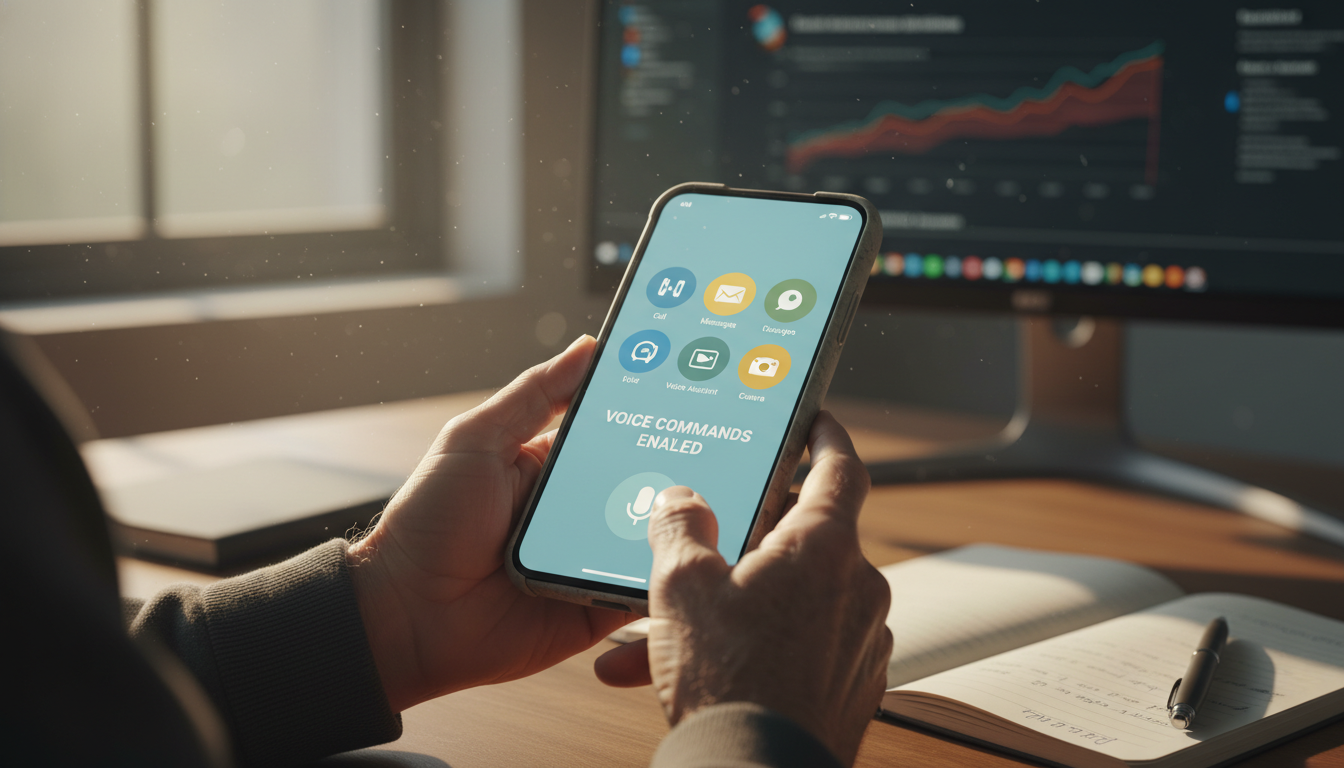
Voice commands offer a powerful alternative to manual typing for device operation. These features transform spoken words into written text and device commands. This approach significantly reduces physical effort during daily use.
Both major mobile platforms provide robust voice recognition capabilities. You can compose messages, create lists, and control functions through speech. This eliminates the need for precise finger movements on small surfaces.
Activating Siri, Google Assistant, and Dictation Features
Enable dictation on iPhone through Settings > General > Keyboard. Toggle the Enable Dictation switch to activate this feature. A microphone icon will then appear on your keyboard across all applications.
Android devices similarly display a microphone icon when the keyboard appears. Tap this icon and select Allow to grant recording permissions. You can then speak instead of type in any text field.
For hands-free assistance, activate Siri with “Hey, Siri” on iPhone. Android users can summon Google Assistant using “Hey, Google” or “OK, Google.” These verbal commands provide complete device control without touch.
| Feature | iPhone Activation | Android Activation | Key Benefit |
|---|---|---|---|
| Dictation | Settings > General > Keyboard | Microphone icon on keyboard | Reduces typing effort |
| Voice Assistant | “Hey, Siri” command | “Hey, Google” command | Hands-free device control |
| Auto-Punctuation | iOS 16+ automatically inserts | System intelligently adds | Creates proper text formatting |
You can speak punctuation naturally by saying “comma” or “period.” Newer iPhones with iOS 16 automatically insert these marks. Android systems similarly provide intelligent punctuation features.
These tools benefit anyone who finds typing physically demanding. They maintain natural communication patterns through speech. The result is reduced strain and greater independence with technology.
Implementing Switch Access and Touch Accommodations
Modern operating systems include sophisticated input alternatives that bypass traditional touch interaction. These features provide complete control for users with mobility limitations.
iPhone’s Switch Control enables navigation using external switches or head gestures. Users can create custom “recipes” for complex actions like turning e-book pages.
Android’s Switch Access offers similar functionality with Camera Switches. This feature recognizes six facial gestures for hands-free operation.
| Platform | Primary Method | Gesture Options | Customization Level |
|---|---|---|---|
| iPhone Switch Control | External switches & head tracking | Head movements | Advanced recipe creation |
| Android Switch Access | Camera Switches & external devices | 6 facial expressions | Gesture sensitivity adjustment |
Touch Accommodations modify how the screen responds to input. iPhone users can adjust recognition time and prevent multiple touch errors.
Android provides similar settings for touch duration. Both systems accommodate users who need more time for accurate selections.
These advanced features transform interaction with personal devices. They maintain full functionality while reducing physical demands.
Using Adaptive Accessories and Assistive Switches
Physical switches and specialized accessories create alternative pathways for operating mobile technology. These hardware solutions work with built-in accessibility features to provide complete control.
External devices range from simple buttons to sophisticated head pointers. They detect intentional movements with minimal pressure. This approach eliminates traditional screen touching.
Both major platforms support various third-party adaptive switches. Compatibility lists help users find the right options. These tools address individual physical needs effectively.
Switches can position anywhere on the body for reliable activation. The system learns user patterns through systematic scanning. This creates personalized interaction schemes.
Specialized holders and grips reduce the need to support device weight. Users interact while the phone rests in stable positions. This approach minimizes physical strain during operation.
Professional assessments determine the best accessory matches. Occupational therapists provide valuable support for optimal configuration. These devices ensure technology remains accessible to all users.
Advanced Accessibility Options: Expressive Captions and TalkBack
Cutting-edge AI features now provide richer contextual information for users with hearing and vision challenges. These tools represent significant advancements in digital inclusion.
According to Google’s Angana Ghosh, these innovations address user feedback about finding assistive tools. The company carefully listened to community needs.
Configuring Expressive Captions for Enhanced Clarity
Expressive Captions use artificial intelligence to communicate more than just spoken words. This feature captures tone, volume, and environmental cues.
The system works across all applications and platforms. Users can enjoy live conversations and personal media with full context.
Navigate to Settings > Accessibility > Hearing enhancements > Live Caption. Toggle Expressive captions to activate this advanced feature.
Activating TalkBack and Braille Keyboard Features
TalkBack reads screen content aloud for complete audio navigation. Users interact through gestures without looking at their device.
Gemini AI generates detailed descriptions for images lacking alt text. The system answers questions about visual content through spoken responses.
The Braille keyboard enables six-finger input for tactile communication. It supports multiple languages including Unified English Braille.
Activate TalkBack through Settings > Accessibility > TalkBack. An interactive tutorial immediately begins audio guidance.
| Feature | Primary Function | Activation Path | AI Enhancement |
|---|---|---|---|
| Expressive Captions | Contextual audio information | Settings > Accessibility > Hearing | Tone and environmental cues |
| TalkBack | Screen reading and navigation | Settings > Accessibility > TalkBack | Image description generation |
| Braille Keyboard | Tactile text input | Within TalkBack settings | Multi-language support |
These tools demonstrate how modern accessibility solutions address diverse user needs. They reduce physical strain while maintaining full device control.
Remote Assistance with DeskIn for Elderly Users
Distance should not prevent family members from providing technical support. DeskIn remote desktop software creates a virtual bridge between households. This practical solution allows complete configuration from any location.
The tool supports cross-platform compatibility for maximum flexibility. You can use Mac, iPhone, or Android devices to control another Android phone. Screen sharing works for iPhone viewing as well.
Step-by-Step Guide to Remote Setup
Begin by installing DeskIn on both your device and the relative’s phone. Use the same account credentials for login on both units. This creates the secure connection foundation.
Ask your family member to toggle “Allow remote control” when assistance is needed. Locate their device in your DeskIn list and initiate connection. The process requires just three simple steps.
Built-in voice calling and annotation functions enhance communication during sessions. You can guide while operating their device simultaneously. This interactive approach makes learning more effective.
DeskIn maintains stable connections with high-quality 1080p video. Security features prevent unauthorized access through account verification. Family members can provide comprehensive support confidently.
Ensuring Device Safety and Privacy in Adaptive Modes
Security considerations become especially important when using simplified device modes. These interfaces must balance ease of use with proper protection.
Family members should understand how safety settings change in these modes. The system may limit certain features to prevent confusion.
iPhone’s Assistive Access clearly explains restrictions during setup. It covers emergency services, notifications, and privacy information. This allows informed decisions about which limitations work best.
Emergency calling must always remain accessible. Verify that local emergency numbers work even with other functions restricted. This provides crucial peace of mind.
Notification settings might reduce distractions in simplified modes. Important alerts from family or medication reminders should bypass these limits. Configure these exceptions carefully.
Samsung’s Auto Blocker enhances security significantly. It prevents app installations from unknown sources. Downloads come only from verified stores like Galaxy Store or Play Store.
This feature also blocks software updates via USB connections. It filters malicious images in messaging apps. These protections help avoid common scams.
Periodically review privacy settings to ensure proper balance. Simplified modes should not grant excessive permissions to apps. Regular checkups maintain optimal security over time.
Combine technical safeguards with conversations about scam tactics. This comprehensive approach allows confident use of simplified interfaces. Address any questions that arise during configuration.
Troubleshooting Common Issues in Adaptive Settings
When personalized configurations don’t perform as intended, having a troubleshooting strategy becomes essential for maintaining device functionality. Even well-configured adjustments can sometimes behave unexpectedly.
System updates or app installations may reset preferences without notification. Always verify that each adjustment remains active in your configuration menu.
| Issue Type | Primary Symptom | Recommended Action | Prevention Tip |
|---|---|---|---|
| Feature Conflict | Multiple adjustments interfering with each other | Disable less essential options temporarily | Test combinations before full implementation |
| Performance Lag | Slow response with resource-intensive features | Reduce simultaneous AI-powered functions | Prioritize most valuable adjustments |
| Voice Command Failure | Speech recognition not responding | Check microphone permissions and volume | Verify Do Not Disturb mode is off |
| App Compatibility | Third-party applications not supporting adjustments | Contact developer or find alternative apps | Choose recently updated applications |
Conflicts between different customization choices can cause unexpected behaviors. Touch modifications might interfere with gesture navigation. Prioritize which adjustments provide the most benefit.
Performance may slow when several resource-intensive functions operate together. AI-powered features like live transcription demand significant processing power. Disabling less critical options can restore responsiveness.
When voice control or text-to-speech functions fail, check microphone and speaker permissions. Ensure volume levels are appropriate and that Do Not Disturb mode isn’t blocking these capabilities.
Third-party applications may not fully support all customization choices. Older apps might lack current compatibility guidelines. Contacting developers or finding better-supported alternatives often resolves these challenges.
Keep a written record of your preferred configurations. This documentation helps recreate optimal setups if your device needs resetting. It also streamlines future troubleshooting efforts.
For complex questions, utilize manufacturer support resources or online assistive technology communities. Local specialists with experience in accessibility configurations can provide targeted solutions.
Customizing Display and Motion Settings to Reduce Eye Strain
The way your screen presents information directly impacts your overall comfort level. Proper visual configuration reduces the need to hold devices at awkward angles. This approach minimizes physical strain throughout your body.
Color adjustment tools help users with various vision conditions. Both platforms offer filters, increased contrast, and inverted color options. These modifications make content more visible and readable.
Reducing motion effects creates a more stable interface. Minimizing animations prevents the disorienting feeling some users experience. The display becomes easier to track during extended viewing sessions.
Brightness calibration balances visibility with comfort. Auto-brightness adapts to different lighting conditions. Blue light filters reduce harsh wavelengths that cause eye fatigue.
Display timeout time settings prevent screens from going dark mid-task. Longer durations accommodate slower reading speeds. This eliminates frustration during information processing.
Font smoothing options create softer text edges for comfortable reading. These features benefit users with specific vision challenges. The result is reduced eye strain during extended use.
Optimizing these visual elements improves the entire user experience. Comfortable viewing positions reduce tension in neck and shoulder muscles. Less eye fatigue translates to decreased hand strain over time.
Conclusion
Modern technology offers powerful solutions that bridge physical limitations and digital accessibility. This article has explored the comprehensive range of accessibility features available on today’s mobile platforms.
Both major operating systems provide robust tools that maintain user control while reducing physical strain. From basic text enlargement to advanced voice commands, these options create personalized experiences.
Family members play a crucial role in implementing these helpful features. Remote assistance tools like DeskIn enable support from any distance. Pre-configuring a new device ensures a positive first experience.
The right configuration empowers users to make calls, receive notifications, and capture memories with the camera comfortably. These accessibility settings address individual needs effectively.
Taking time to explore these options transforms digital content interaction. The result is greater independence and reduced physical demands during daily technology use.