Have you ever considered that the default display on your device might be working against your vision? Millions of people face this exact challenge daily. In our modern world, digital devices are central to work and life. Yet, many users experience significant discomfort.
Take Emily, a professional video editor. She invested in blue light glasses and an ergonomic monitor. Despite this, she battled persistent glare and eye strain by mid-afternoon. The issue wasn’t her gear; it was the preset configurations. These standard options are not designed for individual visual needs.
The truth is, there is no universal “best” setting. Optimal comfort is deeply personal. It depends on your unique biology, your environment’s lighting, and the complexity of your tasks. Research highlights that factors like your blink rate and tear film quality play a major role in visual discomfort.
When we focus intently, we tend to blink less. This leads to dry, irritated eyes—a common symptom of computer vision syndrome. This article provides actionable information to help you tailor your setup. The goal is to enhance your daily experience and protect your vision.
Key Takeaways
- Default device settings are often not optimized for individual comfort and can cause eye strain.
- Optimal display adjustments are highly personal, influenced by biology, environment, and task type.
- Even with protective gear like blue light glasses, improper settings can lead to discomfort.
- Reduced blinking during focused work is a key contributor to dry and irritated eyes.
- Preventing visual fatigue requires a comprehensive approach beyond a single quick fix.
- Small, personalized adjustments to your display can dramatically improve comfort and productivity.
Understanding Eye Fatigue and Digital Strain
The physical toll of extended digital device use manifests in various forms of visual discomfort. Many people experience these symptoms without understanding their root causes.
What Causes Eye Fatigue?
Eye fatigue occurs when your eyes work overtime. The constant adjustment between bright displays and room lighting forces pupils to constantly readjust. This creates significant strain on your visual system.
Research shows that tear film quality and blink rate are major contributors. When focusing on digital content, people blink less frequently. This leads to dry, irritated eyes and compromised vision.
Impact on Health and Productivity
Digital eye strain manifests as fatigue, dryness, and headaches. These symptoms develop after prolonged viewing sessions. The condition affects millions of Americans daily.
This strain reduces focus and slows work pace. It diminishes accuracy and affects professional performance. The tension often spreads from the eyes to cause neck and shoulder discomfort.
Around 11 million Americans require vision correction. Many don’t realize they need help until an exam reveals issues. Understanding these factors is crucial for protecting your eye health.
Screen Readability Configuration for Long Sessions
Many overlook the critical role that text display quality plays in their daily digital comfort. Properly adjusted visual elements make extended viewing sustainable.
Individual needs vary significantly. What works for one person may cause strain for another.
Why Optimal Readability Matters
Clear text presentation reduces mental effort. Users process information more efficiently when words appear sharp and distinct.
This clarity prevents squinting and forehead tension. It helps maintain concentration during demanding tasks.
Good readability settings support accuracy in work. They minimize errors in both writing and data entry.
Personalizing Settings to Your Needs
Your ideal configuration depends on multiple factors. Consider your environment’s lighting and typical viewing distance.
Experiment with different adjustments during actual use. Notice which combinations feel most comfortable over time.
| Setting Type | Standard Default | Personalized Approach | User Benefit |
|---|---|---|---|
| Font Size | Medium (12pt) | Adjust based on distance | Reduces leaning forward |
| Text Contrast | Black on white | Softer grays or dark mode | Decreases glare sensitivity |
| Line Spacing | Single space | 1.5x for dense content | Improves tracking ability |
Regular assessment ensures your setup evolves with changing needs. This ongoing process protects your visual health effectively.
Optimizing Brightness Settings for Your Environment
Finding the perfect luminosity balance between your device and environment is crucial for sustained viewing. Your display should complement rather than compete with ambient conditions.
Balancing Ambient Light with Screen Brightness
The right brightness level harmonizes with your surroundings. In bright offices, increase intensity to maintain clarity. Dim rooms require lower settings to prevent glare.
Mismatched illumination forces constant pupil adjustment. This physiological strain leads to headaches and fatigue. Proper calibration creates visual stability.
| Environment Type | Recommended Brightness | Visual Benefit | Common Mistake |
|---|---|---|---|
| Bright Office | Higher (70-90%) | Clear text visibility | Too dim, causing squinting |
| Home Studio | Medium (40-60%) | Comfortable viewing | Overly bright, creating glare |
| Evening Use | Lower (20-40%) | Reduced eye strain | Same as daytime settings |
Auto-Brightness vs. Manual Control
Automatic settings provide a useful starting point. They adapt to changing lighting conditions throughout the day. This feature prevents sudden uncomfortable transitions.
Manual adjustment often delivers superior comfort. Personal preferences vary significantly between individuals. Fine-tuning allows customization for specific needs.
Test different levels during actual work sessions. Notice which combinations feel most natural over time. This personalized approach maximizes visual wellness.
Enhancing Contrast and Text Clarity
Many people underestimate how contrast settings impact their ability to process information efficiently. The right balance between text and background colors determines visual comfort.
Setting High Contrast for Better Visibility
High contrast creates clear differentiation between elements on your display. This reduces the effort required to distinguish letters and shapes.
Web Content Accessibility Guidelines recommend specific ratios for optimal viewing. Normal text should have at least 4.5:1 contrast, while larger text needs 3:1.
| Setting Type | Minimum Standard | Optimal Range | Visual Benefit |
|---|---|---|---|
| Monitor Contrast | Factory Default | 60-70% | Sharp text edges |
| Text Size | 12pt Standard | 16px Minimum | Arm’s length reading |
| Contrast Ratio | 3:1 Basic | 4.5:1+ Optimal | Reduced squinting |
Text Smoothing and Font Adjustments
Font smoothing technologies like ClearType (Windows) create crisper text edges. These features make characters easier to track across the page.
Increase your system display scaling to 125-150% for better visibility. Choose font sizes that remain clear from your typical viewing distance.
Proper letter spacing (0.12-0.16em) and line height (1.5-2x) enhance scanning ability. These adjustments reduce visual crowding that contributes to strain.
Customizing Theme Mode for Visual Comfort
Your choice between light and dark themes can dramatically affect how your eyes feel after hours of computer work. The overall color scheme of your operating system and applications plays a significant role in perceived comfort during extended use.
Light Mode for Detailed Tasks
Light mode features dark text on a light background, providing high contrast ideal for detailed work. This setting offers maximum clarity for tasks like text editing and proofreading.
It works particularly well in well-lit daytime environments. The strong contrast makes reading effortless and reduces visual effort.
Dark Mode for Reduced Glare
Dark mode uses light text on a dark background to minimize glare and eye strain. Research shows this mode reduces perceived mental demand during visual tasks.
It’s especially effective in low-light conditions or during evening hours. The reduced light emission creates a gentler viewing experience.
Optimal mode selection depends on your environment and task type. Consider switching between modes throughout the day based on lighting conditions and visual demands.
Adjusting Color Temperature to Cut Down Blue Light
Beyond brightness and contrast, color temperature is a powerful tool for eye protection. The hue of your display significantly impacts both immediate comfort and long-term wellness.
Digital devices emit substantial blue light. This spectrum is beneficial during daytime hours but becomes problematic in the evening.
Activating Night Shift or Night Light Features
Modern operating systems include automatic blue light reduction features. Apple’s Night Shift and Windows’ Night Light adjust your display automatically.
These tools shift the color palette toward warmer amber and yellow tones. The transition typically occurs around sunset based on your location.
Manual scheduling provides greater personal control. You can set specific hours that match your typical usage patterns.
Benefits of Warmer Screen Tones
Warmer color temperatures create less visual stress after dark. They reduce the harshness associated with cool blue-white light.
This adjustment supports your natural sleep-wake cycle. Excessive blue light exposure in the evening can disrupt melatonin production.
Many users report decreased eye fatigue and fewer headaches. The gentler light feels more comfortable during extended viewing.
| Feature Name | Operating System | Activation Method | Optimal Use Time |
|---|---|---|---|
| Night Shift | macOS/iOS | Display Settings > Night Shift | Sunset to Sunrise |
| Night Light | Windows | Settings > System > Display | Evening Hours |
| Blue Light Filter | Android | Display > Blue Light Filter | After Dark |
Finding the right balance maintains color accuracy while protecting your eyes. Adjust the warmth intensity based on your personal comfort and task requirements.
Integrating Ergonomic Practices for Eye and Body Health
Proper workstation ergonomics work hand-in-hand with display settings to protect your vision and posture. Even the best visual adjustments cannot compensate for poor physical setup that causes eye strain.
Proper Monitor Position and Posture
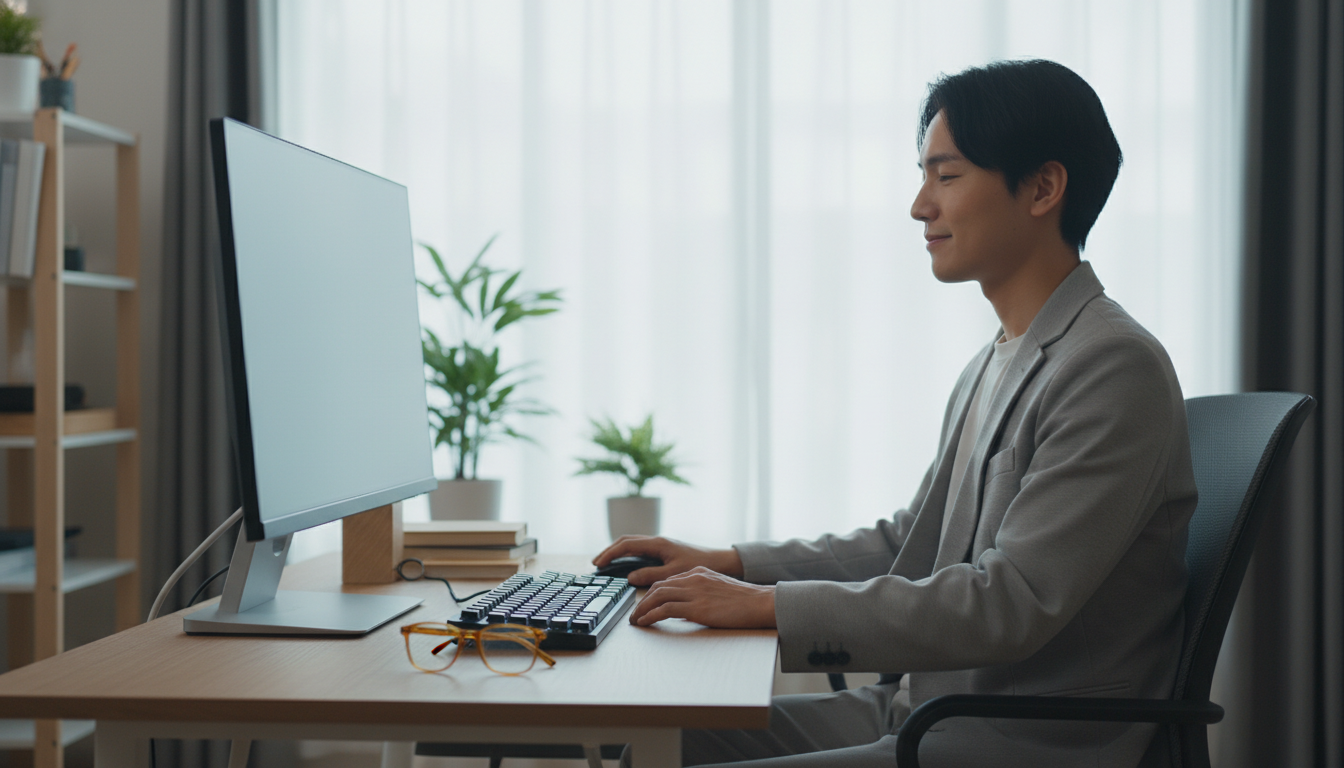
Position your monitor so the top aligns with or sits slightly below eye level. This creates a natural downward viewing angle that reduces neck strain.
Maintain an arm’s length distance from your display. You should read comfortably without leaning forward or squinting. Tilt the monitor about 15 degrees below horizontal for optimal viewing.
Place light sources to your side rather than directly behind or in front of you. This positioning eliminates reflections that cause body discomfort. Proper lighting complements your display setup effectively.
The 20-20-20 rule provides essential breaks for eye muscles. Every 20 minutes, look at something 20 feet away for 20 seconds. This practice encourages natural blinking and gives users important relief.
Combining optimal display settings with correct physical arrangement offers the most effective way to prevent strain. This comprehensive approach delivers better comfort and protects long-term health.
Leveraging Advanced Monitor Features and Eye-Care Technologies
Premium monitors now incorporate specialized technologies that actively protect your vision during demanding work. These built-in solutions go beyond basic adjustments to address specific visual challenges.
Utilizing Built-In Eye-Care Options like Night Hours Protection
BenQ’s RD Series monitors feature innovative Coding Mode designed specifically for text clarity. This setting optimizes display parameters to make fonts sharper and more distinct.
The technology ensures each character renders with precision. This helps users differentiate between similar-looking symbols on the page.
These monitors combine high resolution (4K+), wide color gamut (98% P3), and exceptional contrast ratios (2000:1). Multiple factors work together to deliver crisp text content.
| Technology | Primary Function | User Benefit | Best Use Case |
|---|---|---|---|
| Coding Mode | Text clarity optimization | Reduces eye strain | Programming, writing |
| Nano Matte Panel | Reflection minimization | Clear visibility | Bright environments |
| Night Hours Protection | Low-brightness solution | Comfortable night work | Late-night sessions |
| B.I. Gen2 | Auto brightness adjustment | All-day comfort | Changing lighting |
| MoonHalo Bias Lighting | Background illumination | Reduces contrast strain | Dim environments |
Advanced blue light reduction uses both hardware and software approaches. Color Weakness mode ensures accessibility for all users.
These integrated technologies provide comprehensive protection for your eyes. They work together to maintain comfort during extended computer use.
Tailoring Display Settings Across Different Operating Systems
Windows and macOS offer unique pathways to customize your viewing experience for reduced eye strain. Each platform provides specialized tools that can transform your digital workspace.
Understanding the location of critical controls within your system unlocks personalized visual comfort. The right adjustments make a significant difference in daily computer use.
Adjustments in Windows Display Settings
Windows users can access essential display settings through Start Menu → Settings → System → Display. This menu contains brightness controls and scaling options.
Night Light feature reduces blue light exposure through Display → Night light settings. Text clarity improves with ClearType technology for crisp edges.
Contrast themes are available in Accessibility settings. These adjustments enhance visibility for various content types.
Optimizing macOS Display Options
macOS users navigate to Apple Menu → System Settings → Displays for brightness controls. Night Shift automatically warms color temperature after sunset.
Appearance settings let you switch between light and dark mode. Font smoothing ensures sharp text rendering across applications.
Accessibility → Display offers specialized options for text size and contrast. These tools help users process information more comfortably.
Conclusion
Your eyes deserve the same thoughtful care you give to other aspects of your health and wellbeing. In our digital world, protecting your vision requires a comprehensive approach that combines smart settings with healthy daily habits.
Small, consistent actions create significant long-term benefits for your visual comfort. Start each day by adjusting brightness based on your surroundings. Take regular breaks using the 20-20-20 rule to refresh your eyes.
Remember that optimal settings are highly personal. Use this article’s guidance as a framework for experimentation. Pay attention to text size, contrast, and blue light reduction during evening hours.
If discomfort persists despite these adjustments, consult an eye care professional. Modern exams can detect issues related to digital strain. Your vision is worth protecting with these practical strategies.