Stephen Hawking once said, “However difficult life may seem, there is always something you can do and succeed at.” This powerful idea resonates deeply with millions who face daily physical challenges. For many, modern devices are essential for connection, work, and entertainment.
Over ten million individuals in the United States manage conditions that affect hand strength and joint comfort. These challenges can make using everyday technology feel frustrating and limiting.
This guide offers clear, actionable solutions. We explore how simple modifications can transform your interaction with a device. Our recommendations come from accessibility specialists and real user feedback.
The goal is to provide knowledge that fosters independence. Whether dealing with early symptoms or more advanced stages, you can find ways to use your device effectively. The right changes can reduce discomfort and boost productivity.
Key Takeaways
- Millions of people experience challenges when using technology due to reduced hand mobility.
- Simple modifications can significantly improve comfort and efficiency.
- Expert recommendations and user experiences form the basis of this guide.
- Solutions are available for various stages of physical conditions.
- Empowerment through knowledge is the primary goal.
- Built-in features and external accessories can offer substantial relief.
- Maintaining independence in the digital age is achievable with the right adjustments.
Understanding Arthritis and Motor Decline Impact on Tablet Use
For individuals managing joint discomfort, everyday technology use often requires careful consideration and adaptation. The physical challenges can vary significantly from person to person.
Identifying Key Symptoms and Challenges
Arthritis symptoms fluctuate daily, creating unpredictable obstacles. Many people experience flare-ups with increased tenderness and swelling.
These conditions primarily affect the finger joints and wrists. Simple gestures like tapping and swiping become painful tasks.
How Conditions Affect Daily Tablet Interaction
Holding a device for extended time periods strains affected joints. The pain can make basic operations challenging.
Grip problems represent a major concern. Even light devices feel heavy when joints are inflamed.
Beyond the hands, arthritis in shoulders and neck affects positioning. Comfortable viewing angles become difficult to maintain.
Flexible strategies work best since symptoms change daily. What functions well one day may need modification the next.
Tablet Usability Adjustments for Arthritis and Motor Decline
Many users discover that simple software changes can dramatically improve their digital experience. Modern technology contains built-in solutions that address common challenges. These features help people interact with devices more comfortably.
Adapting Device Settings for Comfort
Start by adjusting touch sensitivity. Increasing this level reduces pressure needed for screen interaction. This change makes tapping and swiping much easier.
Modify text size and display settings too. Larger fonts eliminate constant pinching and zooming. These adjustments prevent strain during extended use.
Make sure to explore gesture customization options. Replace complex multi-finger commands with simpler alternatives. This approach reduces physical demands significantly.
Customizing Accessibility Features
Enable touch accommodation settings. These help the device distinguish intentional touches from accidental contact. People who rest hands on screens find this particularly helpful.
Voice activation features offer excellent alternatives. Dictation software allows hands-free messaging and searching. Many users may able to operate devices entirely through speech.
Make sure to test different stylus options. These tools provide alternative input methods. They require less direct finger contact with sensitive screens.
Ergonomic Accessories and Hardware Alternatives
External input devices represent a practical approach to reducing physical discomfort during technology interaction. These tools offer tangible solutions that complement software settings. They address the physical demands of device operation directly.
Hardware alternatives can transform challenging activities into comfortable experiences. The right accessories provide sustained relief during extended use. They make daily computing tasks more manageable.
Exploring Alternative Input Devices
Mouse alternatives provide significant comfort benefits. Smaller wireless models like the Logitech M187 help maintain straight wrist positioning. This design reduces strain on sensitive joints.
Vertical mouse designs position buttons on the side rather than top. This changes the grip angle to a more natural handshake position. Trackball devices minimize wrist movement entirely.
Specialized options like the handshoe mouse offer comprehensive support. They maintain a relaxed 25-30 degree arm angle. Gaming mice with thumb rests address specific pain points effectively.
Choosing Ergonomic Keyboards and Mice
Keyboard selection plays a crucial role in comfort management. Bluetooth models connect wirelessly to various devices. They help avoid uncomfortable wrist angles during use.
Low-profile keyboards require less finger pressure and travel distance. Compact designs with smaller footprints reduce stretching to reach different keys. This is particularly helpful for limited range of motion.
Ergonomic keyboard designs feature split or curved layouts. They position hands at more natural angles. While they may take time to learn, the long-term comfort benefits are substantial.
Utilizing Voice Commands and Dictation Software
Modern speech-to-text technology eliminates the physical demands of typing. This creates new possibilities for comfortable computing.
Voice input has evolved from specialized tools to mainstream features. Most devices now include robust built-in capabilities.
Setting Up Reliable Voice Input
Initial setup may take time as the system learns your speech patterns. This investment pays off with reduced physical strain.
Built-in software handles everyday tasks effectively. You can compose email messages and search the web through spoken commands.
Professional applications often require specialized vocabulary. Software like Dragon Professional includes industry-specific dictionaries for technical fields.
Many users may able to rely primarily on voice input for daily tasks. The technology has achieved impressive accuracy rates in recent years.
Alternative options like Spellex and Medincle serve specialized needs. These tools support medical and legal terminology effectively.
Voice commands extend beyond dictation to device control. This comprehensive approach minimizes manual interaction throughout the work day.
Optimizing Software Accessibility Features
Many people overlook the accessibility features already present in their device’s software settings. These built-in tools provide powerful ways to improve typing accuracy without purchasing additional equipment.
Activating Filter and Sticky Keys
Filter Keys functionality helps prevent frustrating repeated characters. This feature tells your device to ignore brief or repeated key presses that occur when fingers rest too long.
You can customize the time threshold for key registration. This accommodation supports slower finger movements while maintaining reasonable typing speed.
Sticky Keys transforms how modifier keys work on your keyboard. Instead of holding multiple keys simultaneously, you can press them sequentially.
This adaptation makes essential keyboard shortcuts accessible when simultaneous pressing becomes difficult. The software adjustments work seamlessly once configured.
These features address common typing challenges effectively. The combination provides significant improvement for digital interaction.
Designing Your Work Environment for Comfort
The physical space where you interact with technology plays a crucial role in comfort management. Your immediate surroundings can either increase strain or provide relief during extended usage periods.
Proper lighting represents a fundamental consideration. Natural light reduces eye strain while avoiding harsh glare on screens. Position your workspace to maximize comfortable illumination throughout the day.
Seating arrangement deserves careful attention. Choose a chair that supports proper spinal alignment. Your feet should rest flat on the floor with knees at a 90-degree angle.
Device positioning affects neck and shoulder comfort significantly. Elevate your screen to eye level to prevent constant bending. This simple change reduces cervical strain during long sessions.
Organize frequently used items within easy reach. This minimizes excessive stretching or twisting movements. Keep essential tools accessible to maintain fluid workflow.
Consider temperature and airflow in your space. Comfortable conditions help maintain focus and reduce physical tension. Small environmental tweaks can yield substantial comfort improvements.
Improving Posture and Adjusting Workstations
Creating a supportive physical space is a fundamental step toward comfortable device interaction. Your setup at home or work directly influences your physical well-being during long sessions.
Proper posture starts with your chair. Make sure the height allows your feet to rest flat. Your thighs should be parallel to the floor. This position reduces strain on your back.
Next, focus on screen placement. Position your device at eye level. This simple change prevents neck strain that can lead to significant discomfort.
Lumbar support is another key element. A good chair or add-on backrest maintains your spine’s natural curve. This support prevents slouching and the resulting pain.
Consider adding a footrest, especially during flare-ups. An angled rest keeps your feet in a comfortable position. It helps manage swelling in the ankles.
The way you organize your space matters. Keep frequently used items within easy reach. This setup minimizes reaching and twisting movements that stress joints.
Adjustable furniture offers the best solution. It lets you modify your workstation based on how you feel each day. This flexibility is crucial for managing variable symptoms.
Integrating Adjustments into Home and Work Routines
The effectiveness of any assistive strategy hinges on how well it integrates into your actual daily life. Success comes from tailoring solutions to your specific activities and environments.
What works for video calls may differ from what helps with reading or creating content. Each task demands its own thoughtful approach to minimize physical strain effectively.
Practical Adjustments for Diverse Settings
Your home environment offers flexibility. You may find it helpful to place stands in different rooms like the bedroom or kitchen. This strategy supports comfortable use wherever you are.
Professional environments often require sustained device interaction. Implementing comprehensive ergonomic support is essential here. The goal is to maintain productivity without increasing discomfort during the workday.
Practical tips include keeping essential tools immediately accessible. Attach a stylus to your device’s case or enable voice commands permanently. These small habits prevent frustrating searches.
Streamlining Daily Routines with Tech Aids
Building consistent routines ensures you always use your supports. For instance, make it a rule to use a stand for video calls instead of holding your device. This simple habit prevents unnecessary joint stress.
It is vital to remember that solutions are highly personal. What works perfectly for one person may not suit another. This is a normal part of finding what helps you.
The way you organize your spaces should mirror your common activities. If video calls are frequent, keep your stand and microphone within easy reach. Let your most important tasks guide your setup.
Your needs will change over time. Regularly reassess which adaptations serve you best. This ensures your approach remains optimal as your condition evolves.
Leveraging Assistive Technology and Community Resources
Expert organizations offer specialized services that bridge the gap between technology and accessibility needs. These resources provide comprehensive support for individuals seeking to enhance their digital experience.
Utilizing Support from Organizations like AbilityNet
AbilityNet stands as a leading authority on accessibility solutions. They provide essential services to help people with various physical challenges.
The organization offers detailed advice through their comprehensive website. Users can access current information about built-in features across different operating systems.
Finding Volunteer and Helpline Assistance
AbilityNet’s helpline connects users with knowledgeable staff for personalized support. Calls cost no more than standard national rates.
Their volunteer network includes former IT professionals who provide free in-person visits. These services help people who might struggle to access professional support.
This comprehensive approach ensures users receive tailored advice that addresses their specific needs effectively. Community resources create valuable support networks for long-term success.
Innovative Tips for Enhancing Tablet Interaction
Simple hardware additions offer immediate relief from the physical demands of daily technology use. These practical solutions address the challenge of holding devices during extended sessions.
Using Tablet Stands, Covers, and Grips
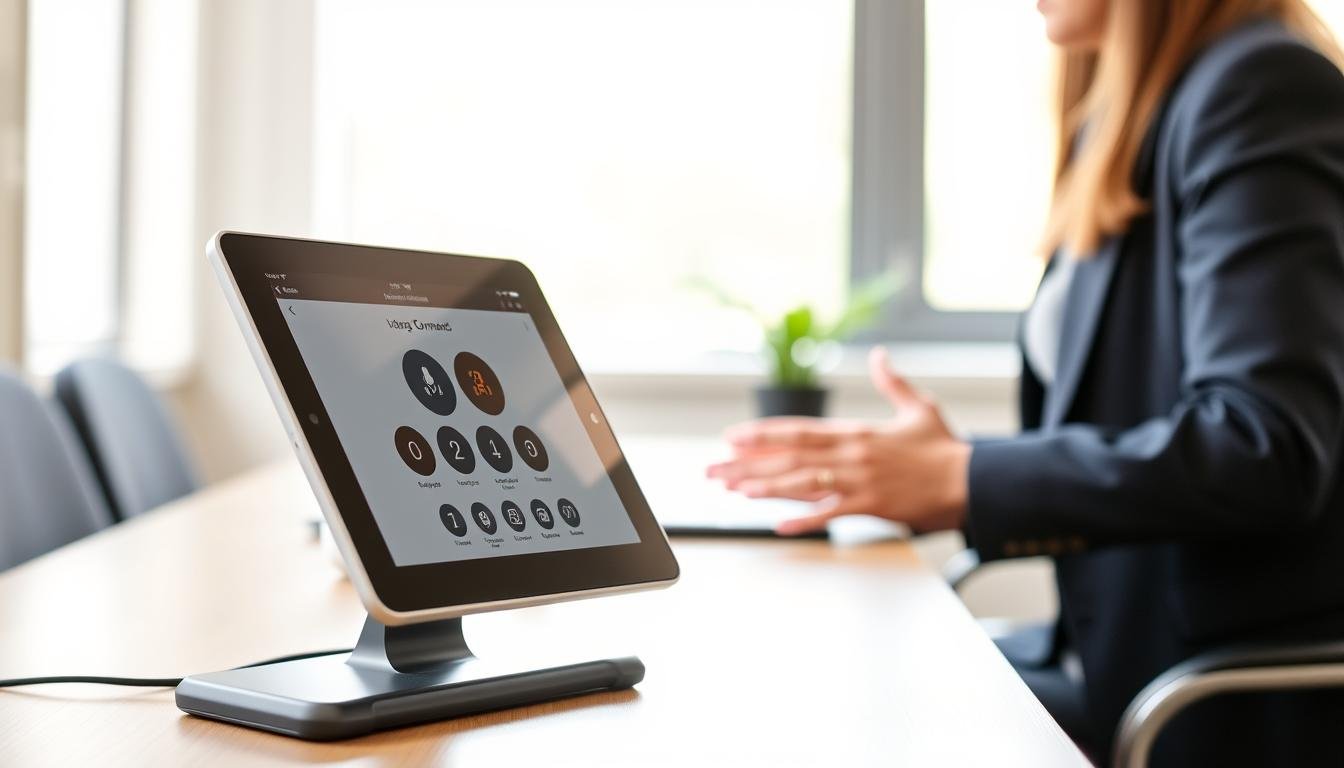
Protective cases with built-in stands eliminate the need to hold your device. This approach significantly reduces strain during video calls or reading sessions.
You may find textured grips on specialized covers improve secure handling. These designs distribute pressure across larger surface areas rather than concentrating it on sensitive joints.
PopSocket-style accessories provide expandable finger loops for comfortable support. They attach directly to your device’s back surface.
Multi-angle stands are also available as separate accessories. They accommodate different viewing positions throughout your day. This flexibility prevents constant manual adjustments.
Lightweight materials prevent excessive bulk that can increase physical strain. Foldable designs transform from protection to support in seconds.
Touchscreen gloves represent another helpful tip for cold weather use. They allow comfortable interaction while protecting hands from temperature extremes.
While one size doesn’t fit all needs, experimenting with different options helps identify ideal solutions. Investing time in finding the right combination pays long-term comfort dividends.
Conclusion
Navigating the digital world with physical challenges requires a thoughtful approach that combines multiple strategies. The comprehensive solutions outlined in this guide demonstrate how people can maintain independence through smart technology use.
Personalization remains the key to success, as one size rarely fits all needs. What works perfectly for one person may require modifications for another. This flexibility ensures everyone can find their optimal configuration.
From software features to hardware alternatives, various layers of support are available. Voice commands and specialized accessories provide significant relief. These tools help reduce strain on sensitive joints during daily tasks.
Organizations like AbilityNet offer valuable services through their website and helpline. Their expert advice provides authoritative support for those seeking assistance. Charities focused on arthritis also provide essential resources.
Remember to regularly reassess your setup as conditions change over time. New solutions become available, and your needs may evolve. The investment in finding the right combination pays long-term dividends in comfort and capability.