Helen Keller once said, “The only thing worse than being blind is having sight but no vision.” This powerful idea connects deeply with the experience of age-related vision changes. Many people notice shifts in their eyesight starting in their early 40s. This condition, called presbyopia, makes it harder to see things up close.
Modern technology offers incredible tools to help. Your mobile device likely has built-in features designed to assist. These tools can make a significant difference in daily life. They help with reading messages, making calls, and using apps.
This guide will show you how to use these powerful features. Both Apple and Android phones come equipped with helpful options like Voice Control and Magnifier. You don’t need to buy anything extra. The key is knowing where to find these settings and how to turn them on.
Keeping your device’s software updated is also crucial. Updates often include new improvements for accessibility. By taking a few simple steps, you can maintain your digital independence and stay connected with ease.
Key Takeaways
- Age-related vision changes, like presbyopia, commonly begin in a person’s early 40s.
- Modern phones have built-in accessibility features that do not require additional purchases.
- Tools such as Voice Control and Magnifier can greatly improve usability.
- Keeping your device’s operating system updated ensures access to the latest technology.
- Proper configuration helps with daily tasks like reading, navigation, and communication.
- These adjustments benefit anyone experiencing difficulty with near vision or small text.
Introduction to Accessibility and Vision Changes
From slight blurriness to more significant obstacles, vision changes exist on a spectrum. This is a natural part of life for many individuals. Understanding this range is the first step toward finding effective solutions.
Understanding Age-Related Vision Impairment
Presbyopia is a common condition that typically begins in a person’s early 40s. It reduces the eye’s ability to focus on nearby objects. This makes reading small text on a device particularly challenging.
These visual shifts are often progressive. Needs for assistance may increase over time. It is important to recognize that adjustments are not a one-time event but an ongoing process.
The Role of Technology in Enhancing Accessibility
Modern devices have powerful tools built directly into their systems. Manufacturers integrate features like screen magnification and voice control. This eliminates the need for separate, specialized equipment.
These innovations empower individuals to maintain their independence. Users can read emails, view photos, and navigate content with greater ease. The emotional frustration of vision loss can be significantly reduced.
Keeping your device’s software updated is crucial. New improvements are regularly released. This ensures you always have access to the latest and most helpful features.
Importance of Accessibility Settings for Seniors
Proper configuration of device options can transform a frustrating experience into an empowering one. Many individuals abandon their mobile devices when text becomes too small to read clearly. This leads to digital isolation and dependence on others for basic communication.
Well-adjusted accessibility features enable people to maintain their independence. They can read messages, view photos, and navigate apps without strain. This preserves connections with family and access to vital services.
Some believe these adjustments indicate weakness or technical incompetence. Actually, they represent smart adaptation to natural changes. Modern technology offers built-in solutions that compensate for visual challenges.
Setting up these options initially saves ongoing frustration. Most adjustments involve simple toggles in the settings menu. A properly configured device often proves easier to use than traditional alternatives.
Taking time to explore these features ensures continued digital participation. It prevents the abandonment of useful technology due to visual limitations. The right settings make all the difference in daily usability.
Built-In Accessibility Features on Apple Devices
Many helpful features are built directly into Apple devices to support reading and navigation. These tools are found in the Settings menu under a dedicated category. They require no additional downloads or purchases.
Voice Control and VoiceOver
Voice Control lets you operate your phone completely hands-free. You can speak commands like “Open Messages” or “Swipe left.” This feature is available on iOS 13 and later versions.
VoiceOver is a gesture-based screen reader that describes what is on your display. Tap an image with three fingers to hear a description. It works with most apps and offers Braille display support.
Audio Descriptions and Magnifier
The Zoom feature provides powerful screen magnification up to 1500%. This helps users read emails and view pictures with ease. You can choose between full-screen or picture-in-picture view.
Magnifier turns your camera into a digital loupe. Point it at objects to see fine details more clearly. You can also apply color filters and use the flash for better lighting.
Audio Descriptions provide spoken narration for visual content in supported videos. Speak Selection reads highlighted text aloud without enabling the full screen reader. These options offer flexible assistance for different tasks.
Customizing Android Accessibility for Low Vision
Google’s mobile platform provides robust built-in features that can dramatically improve device usability. These tools are available on devices running Android 8.0 (Oreo) or later. You can find all these options in the Settings menu under Accessibility.
TalkBack and Select-to-Speak
TalkBack serves as Android’s comprehensive screen reader. It announces what’s happening on your display and helps with navigation. You can activate it through Settings or by pressing both volume keys simultaneously.
When enabled, this feature requires specific gestures for operation. Double-tap to select items and use two fingers for scrolling. Select-to-Speak offers text-to-speech functionality without full screen reader engagement.
Press the accessibility button and tap any item to hear it read aloud. You can also drag your finger across the screen to select multiple items. This provides flexible reading options for different needs.
Magnification and Font Size Adjustments
The magnification feature lets you zoom in on any part of your screen. Activate it by holding both volume keys or using a two-finger double-tap gesture. You can choose between full-screen or partial lens-style viewing.
Navigate while zoomed by dragging two fingers across the display. Pinch gestures adjust the zoom level precisely. The Display Size and Text menu offers separate controls for text scaling and overall interface size.
These adjustments make everything from icons to app interfaces more visible. Additional options include Bold Text for heavier font weight and high contrast text for better readability. Color correction helps those with color perception challenges.
Smartphone Accessibility Settings for Seniors with Vision Loss
The most valuable assistive features on modern devices remain dormant until specifically enabled by the user. These powerful tools don’t activate automatically. You must navigate to your phone’s settings menu to turn them on.
Configuration is not a one-time event. As visual needs evolve, your device’s options should adapt accordingly. Many people find their requirements change over months or years.
Combining multiple adjustments often yields better results than using single features. Pairing larger text with high contrast can dramatically improve readability. Adding voice feedback to magnification creates a comprehensive solution.
Testing different combinations helps identify what works best for your specific situation. Experiment with various settings during different activities like reading or navigation. What helps one person might not work as well for another.
Create shortcuts for frequently used features to avoid menu navigation. Both major platforms allow quick toggling of essential functions. Don’t hesitate to ask family members for assistance during initial setup.
Regular updates bring improvements to these helpful tools. Keeping your operating system current ensures access to the latest advancements. Proper configuration transforms frustration into digital independence.
Enhancing Accessibility with Third-Party Apps
Beyond your device’s built-in tools, a world of specialized applications awaits to further enhance your digital experience. Many free options are available in both major app stores. These programs extend functionality for those experiencing visual challenges.
Apps for Text Recognition and Reading
Microsoft’s Seeing AI offers multiple channels for different tasks. It reads short text, documents, and even handwriting. The app also identifies products, currency, and describes scenes.
Google’s Lookout provides continuous narration of your surroundings. It has specialized modes for reading text and identifying food labels. This Android app helps with documents and currency recognition.
Envision AI excels at text recognition and facial identification. It works well with handwritten content and color detection. Sullivan Plus offers similar features with built-in magnification.
Navigation and Object Identification Apps
Be My Eyes connects users with sighted volunteers through live video. They help with reading labels and navigating unfamiliar spaces. This free service is available on both platforms.
Aira offers professional assistance for complex tasks. Trained agents provide detailed explanations and navigation help. This premium service is valuable for challenging situations.
Google Maps has enhanced voice guidance for walking trips. It announces route confirmation and upcoming turns. These features are specifically designed for people with low vision.
Google Lens captures still images to copy physical text. It can translate content and identify nearby places. This versatile tool works on iOS and Android devices.
Optimizing Display and Text Settings for Clear Vision
Fine-tuning your device’s visual output can dramatically improve reading comfort and reduce digital eye strain. The right combination of adjustments makes everything from messages to menus easier to view. Most modern operating systems provide extensive customization options.
Adjusting Font, Contrast, and Color Options
Understanding the difference between text size and display size is crucial. Font adjustments affect only written content, while display scaling enlarges all interface elements. This includes icons, buttons, and navigation bars.
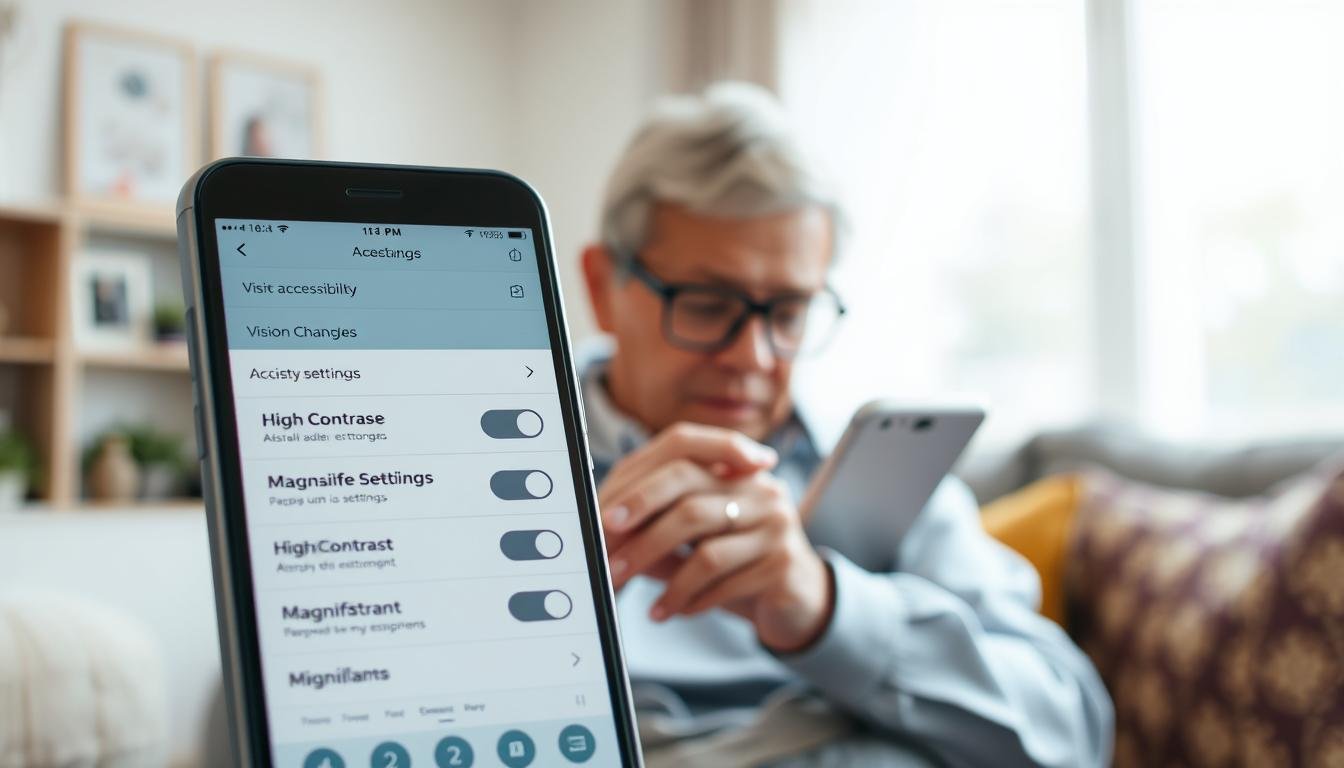
High contrast text adds outlines around letters for better definition. Dark mode presents light-colored content against dark backgrounds. Both options reduce glare and improve readability in various lighting conditions.
Color correction tools help people with specific visual needs. Options include boosted saturation for brighter environments and filters for color perception challenges. Grayscale mode removes all color for simplified viewing.
Keyboard text can be enlarged separately from other content. The GBoard application offers incremental scaling up to 200% of standard size. Experiment with different combinations to find what works best for your individual requirements.
Hands-Free Navigation and Voice Assistant Benefits
The ability to control your phone entirely through voice represents a significant advancement in user-friendly design. This approach eliminates the need to see the screen clearly for many everyday tasks. Voice commands provide an intuitive way to interact with your device.
Apple’s Siri understands natural speech patterns for comprehensive operation. Simply say “Hey Siri” to activate this helpful feature. The assistant can perform numerous functions through speech alone.
Siri and Google Assistant for Seamless Operation
Siri handles essential tasks like placing phone calls and sending messages. It can search for information and provide spoken directions. You can even control other features by saying commands like “Turn on VoiceOver.”
Google Assistant often delivers more accurate responses than Siri. This option works on both Android and Apple devices. Say “Hey Google” to initiate actions like setting reminders or searching emails.
Dictation features let you speak instead of type whenever a keyboard appears. Enable this function in your device’s keyboard settings. You can verbally add punctuation by saying “comma” or “period” during speech.
- Make hands-free calls and send messages
- Search for information and get spoken answers
- Control other features through voice commands
- Use dictation for emails and notes
- Automatically punctuate with recent updates
Recent iPhones with iOS 16 and modern Android devices include auto-punctuation. This innovation intelligently inserts commas and periods without verbal specification. Combined with screen readers, these tools create a fully voice-controlled experience.
Adaptive Accessories and Custom Touch Options
For those who find traditional screen navigation challenging, alternative control methods provide powerful solutions. These tools transform how you interact with your device.
Switch Control on iPhone and Switch Access in Android let you use external switches or camera-based controls. You can navigate sequentially through screen items using simple triggers.
Switch Control, Dictation, and Gesture Commands
iPhone’s system allows head gestures captured by the front camera to control your device. You can create custom “recipes” that automate multi-step actions like turning e-book pages.
Android’s Camera Switches recognize six facial gestures for hands-free navigation. Open mouth, smile, or raise eyebrows to scan through items on your display. Adjust sensitivity in the settings menu to match your movement ability.
Project Activate extends this functionality through a downloadable app. It lets facial gestures trigger customized actions like sending preset messages.
Integrating Adaptive Accessories for Enhanced Use
Touch Accommodations on iPhone change how the screen responds to your fingers. You can adjust touch duration requirements or treat multiple touches as single inputs.
Android offers similar customization through Touch & hold duration settings. Choose short, medium, or long press timing to match your motor control.
The Accessibility button provides quick access to your most-used features. It can float over apps or sit in the navigation bar. Long-press this button to cycle through enabled options.
Combining these tools with external switches or specialized keyboards creates a fully personalized experience. These adaptations make mobile technology accessible to everyone.
Conclusion
Today’s mobile technology offers transformative solutions that adapt to individual visual needs and preferences. This guide has explored the wealth of tools available to enhance digital experiences.
Both major mobile platforms provide extensive built-in support that requires no additional purchases. These features must be manually enabled, and configuration should evolve as needs change over time.
Third-party applications significantly expand capabilities beyond native options. Voice assistants and hands-free controls enable full device operation with minimal screen viewing.
Family members can play crucial roles in initial setup while respecting independence. Properly configured devices help maintain digital connections and manage daily tasks.
Regular updates ensure access to the latest improvements. Using assistive technology represents intelligent adaptation, allowing people to thrive in our digital world.