Modern life revolves around digital devices. The average American spends nearly four hours daily on their phone. This extensive device usage affects our visual health during prolonged reading activities.
Extended exposure to poorly configured displays can cause discomfort and fatigue. These issues impact millions who rely on technology for work and leisure. Our guide provides evidence-based methods to optimize your viewing experience.
You’ll learn practical techniques that don’t require expensive equipment. Simple changes to settings and habits can dramatically improve your reading sessions. These modifications help protect your visual system from unnecessary stress.
Key Takeaways
- Extended screen time affects eye health and overall comfort
- Proper configuration prevents discomfort and vision-related issues
- Simple adjustments can significantly improve reading experiences
- Practical techniques work across computers, tablets, and smartphones
- Regular eye examinations support long-term vision health
- Implementing changes requires minimal effort but delivers major benefits
Understand the Impact of Digital Screen Use on Your Eyes
Our increasing reliance on glowing rectangles has significant consequences for our visual system. This common issue is known as digital eye strain, or computer vision syndrome. It describes a group of vision-related problems from extended device use.
Recognizing Symptoms of Digital Eye Strain
Knowing the symptoms is the first step to finding relief. People often report eye discomfort, dryness, and irritation. Blurred vision and difficulty focusing are also frequent complaints.
These issues can extend beyond the eyes themselves. Many individuals experience headaches, along with neck and shoulder pain. The intensity of these symptoms typically increases with more time spent looking at devices.
Long-Term Effects on Vision and Health
What happens during prolonged exposure? People blink less, causing dryness. Eye muscles work harder to maintain focus. This cumulative strain on the visual system is real.
Problems can start after just two hours of continuous use. Unaddressed, this can worsen existing vision issues or lead to chronic conditions like persistent dry eye. It can even affect sleep patterns by disrupting natural cycles.
Understanding these impacts empowers you to take action. Awareness is key to protecting your long-term ocular health.
Apply the 20-20-20 Rule for Effective Eye Relief
A simple habit can dramatically reduce the physical toll of prolonged device use. This technique, known as the 20-20-20 rule, is a cornerstone of preventive eye care.
How the 20-20-20 Rule Works
The principle is straightforward. Every 20 minutes, pause for 20 seconds. During this break, look at an object approximately 20 feet away.
This action gives your eye muscles a chance to relax. Focusing on a nearby object keeps specific muscles contracted. Shifting your gaze to a distant point allows them to recover.
The rule also promotes natural blinking. Concentration often reduces blink rates, leading to dryness. Regular breaks help maintain essential moisture.
Tips and Reminders to Stay Consistent
Estimating 20 feet is easier than you think. It’s roughly the distance to a window or across a standard room. This makes the rule practical in any setting.
Consistency is key. Use technology to build the habit. Various applications can send gentle reminders when it’s time for a break.
| Platform | Application Name | Key Feature |
|---|---|---|
| iPhone/Mac | Eye Care 20 20 20 | Customizable break intervals |
| Android | 20 20 20: Eye Break Reminder | Simple, non-intrusive alerts |
| Windows | Twenty | Background operation |
For a low-tech approach, set a recurring alarm on your phone. A kitchen timer also works well. The goal is to make this healthy practice a seamless part of your routine.
Optimize Screen Brightness and Contrast Settings
The relationship between your viewing environment and device settings directly impacts how hard your eyes work. Proper configuration prevents constant pupil adjustments that lead to rapid fatigue.
Matching Screen Brightness to Ambient Lighting
Your display’s brightness level should harmonize with surrounding conditions. In well-lit offices, increase brightness to 70-80% of maximum capacity. For dim rooms, reduce it to 30-50%.
Disable auto-brightness during long reading sessions. This prevents distracting fluctuations that interrupt focus. Manual control provides consistent viewing conditions.
Enhancing Text Clarity Through Contrast Adjustments
Optimal contrast around 60-70% ensures clear element distinction without harsh transitions. Start with minimum contrast, adjust brightness until blacks look natural, then increase contrast gradually.
Follow accessibility guidelines for text clarity. Body text should be at least 16 pixels with proper contrast ratios. This makes viewing easier on your eyes during extended periods.
| Environment Type | Recommended Brightness | Contrast Setting |
|---|---|---|
| Bright Office/Daylight | 70-80% | 60-70% |
| Dim Room/Evening | 30-50% | 50-60% |
| Dark Room/Night | 20-40% | 40-50% |
Revisit these settings regularly as light conditions change throughout the day. Seasonal variations also affect optimal configuration for maximum visual comfort.
Enable Night Mode and Blue Light Filters
Artificial illumination from technology sources presents unique challenges that natural lighting doesn’t. While sunlight contains beneficial blue wavelengths during daytime, excessive evening exposure to artificial blue light can disrupt your body’s natural rhythms.
Benefits of Activating Night Mode
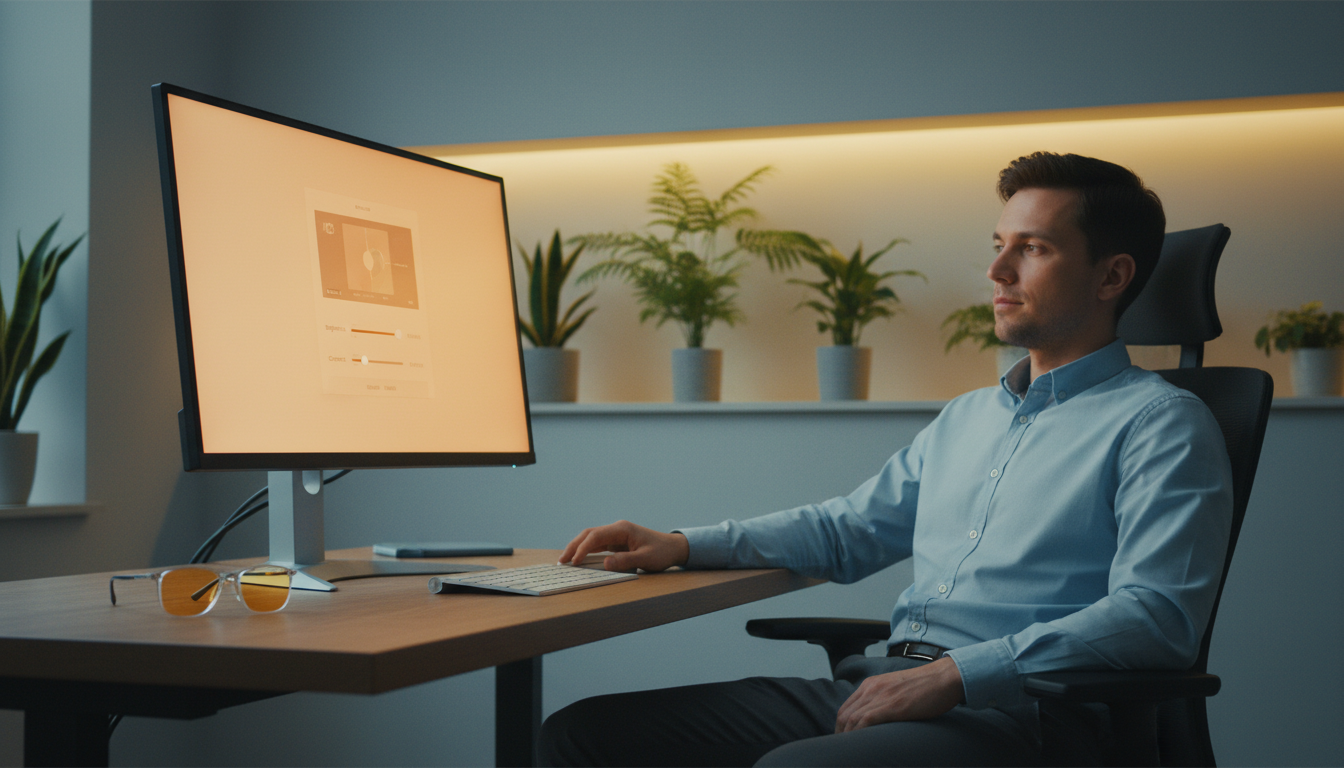
Night mode shifts your display’s color temperature to warmer amber tones. This reduction in blue light exposure helps maintain healthy melatonin production.
Many devices automatically activate this feature at sunset. Consistent use supports better sleep quality and reduces evening eye strain.
Choosing Between Software Filters and Blue Light Glasses
You have two main options for managing light exposure. Built-in software filters adjust color settings directly on your device. Blue light glasses provide physical protection that works with any technology.
| Solution Type | Cost | Effectiveness | Best For |
|---|---|---|---|
| Software Filters | Free (built-in) | Moderate reduction | Everyday use, automatic scheduling |
| Blue Light Glasses | Varies by quality | High with quality lenses | Multiple devices, maximum protection |
For optimal results, combine both approaches. Use software filters as your primary solution. Add glasses during extended sessions for comprehensive blue light management.
Screen Readability Adjustments for Digital Comfort
Text presentation settings are among the most impactful changes you can make for extended reading. Default configurations often strain your visual system unnecessarily.
Adjusting Font Size and Type for Improved Readability
Small text forces extra focusing effort. Increase your font size to at least 16 pixels for body content. This creates comfortable viewing from normal distance.
Choose serif typefaces like Georgia for long sessions. They guide eye movement naturally. Some readers prefer specialized fonts that reduce letter confusion.
Setting Optimal Text Contrast and Spacing
Proper contrast prevents squinting. Dark characters on light background work well for most people. Some find sepia tones more relaxing.
Adjust line spacing to 1.5 times the font size. This prevents crowded text. Character spacing around 0.12em improves clarity.
These modifications transform any device into an optimized reading environment. Consistent settings across platforms maintain visual comfort.
Improve Ergonomic Posture and Workspace Setup
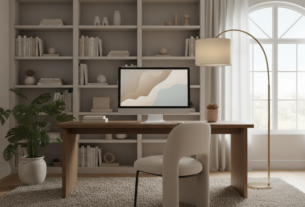
Your physical workspace arrangement plays a crucial role in preventing visual discomfort during extended reading sessions. Proper alignment reduces stress on both your visual system and musculoskeletal structure.
Proper Monitor Positioning and Viewing Angles
Position your monitor 20-28 inches from your face, about arm’s length. The top should align with or sit slightly below your natural eye level.
Tilt the display about 15 degrees below horizontal. This creates a comfortable downward viewing angle. It reduces neck strain and eye fatigue.
Incorporating Ergonomic Accessories
Invest in adjustable chairs with lumbar support. Sit with feet flat on the floor and back straight. This maintains proper posture throughout long sessions.
Monitor arms allow precise positioning to your ideal eye level. For mobile devices, use stands or holders instead of holding them manually. This prevents unnecessary neck twisting and strain.
Good posture works with other strategies to protect your eyes. Even optimal settings cannot compensate for poor physical alignment during extended use.
Maintain Your Eye Health with Regular Eye Exams
While daily habits provide immediate relief, comprehensive eye examinations offer the long-term protection your vision deserves. Many people don’t realize they need correction until a professional evaluation reveals underlying issues.
Approximately 11 million Americans over age 12 require vision correction. Thorough exams detect early signs of digital eye strain and identify related conditions. They provide personalized recommendations based on your individual needs.
When to Consult an Eye Care Professional
Adults under 40 with no known vision problems should schedule exams every two years. Those between 40-60 need checkups every one to two years. Individuals over 60 benefit from annual examinations.
Certain factors require more frequent visits. These include wearing corrective lenses, experiencing frequent headaches, or having family history of eye diseases. Managing conditions like diabetes also necessitates regular monitoring.
Don’t wait for scheduled appointments if you notice sudden changes. Symptoms like blurry vision or increased light sensitivity need prompt evaluation. Modern exams include specialized tests for digital eye issues.
Regular professional care complements your daily routine. It ensures underlying problems get addressed before they cause significant strain. This comprehensive approach protects your eye health throughout life.
Leverage Reading Apps and Digital Tools for Enhanced Comfort
Moving beyond basic note-taking apps to dedicated reading software unlocks a new level of visual comfort. These applications are engineered for long sessions, offering features that protect your eyes.
They provide precise control over every aspect of the reading experience. This makes extended screen time much easier on your eyes.
App Recommendations for Streamlined Reading
Choose applications like Kindle, Libby, or Pocket for a superior experience. These tools support custom fonts, spacing, and sync across devices.
They maintain your preferred settings no matter which of your screens you use. This consistency is key to reducing strain.
| Application | Best For | Key Comfort Feature |
|---|---|---|
| Kindle | Book Lovers | Paperwhite theme mimics e-ink |
| Libby | Library Users | Adjustable font size and spacing |
| Article Savers | Dark mode and text-to-speech |
Customization Tips for a Personalized Digital Experience
Activate dark mode or sepia backgrounds to reduce harsh light. Adjust brightness directly within the app for finer control over text appearance.
Use Focus mode on your phone to block distractions. This ensures uninterrupted reading, which is less taxing on your eye muscles.
Explore accessibility features like text-to-speech. They give your eyes a rest while you continue enjoying content.
Conclusion
Transforming your relationship with technology begins with simple, sustainable eye protection strategies. Our modern lifestyle demands hours of daily device use, making proactive vision care essential.
Implementing the 20-20-20 rule, optimizing display settings, and maintaining proper posture create a powerful defense against digital eye strain. These small daily actions compound into significant long-term benefits for your eyes.
When discomfort, headaches, or persistent strain occur despite these measures, professional consultation becomes crucial. Modern eye exams can identify specific issues related to extended screen time.
Your eyes deserve consistent protection in our screen-filled world. By integrating these habits and seeking expert care when needed, you can maintain healthy vision while fully engaging with technology.