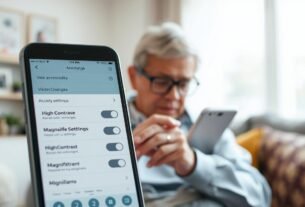
Did you know your smartphone, tablet, or computer contains powerful tools that could transform how you interact with technology? Most people never discover these hidden capabilities.
Today’s operating systems come packed with comprehensive support options designed to help everyone. These are standard components, not expensive extras. They make digital inclusion achievable for all.
This technology benefits more than just individuals with permanent disabilities. Everyone faces situational challenges like reading in bright sunlight or using a device with one hand. These tools provide practical solutions for daily life.
The digital world has undergone a significant shift. Assistive technology is now integrated directly into our everyday electronics. This empowers users to customize their experience based on personal needs and preferences.
In this article, we’ll explore various categories of these helpful options across major platforms. You’ll learn about free resources that are immediately available on your equipment.
Key Takeaways
- Powerful assistance tools are already included in your everyday electronics
- These options benefit all users, not just those with specific needs
- Digital inclusion has become more accessible through integrated support
- Helpful technology can address both permanent and temporary challenges
- Major operating systems offer comprehensive customization features
- These resources are free and ready to use immediately
- Personalizing your device experience can significantly improve productivity
Discovering Hidden Accessibility Tools in Everyday Devices
Your everyday gadgets contain a wealth of helpful capabilities that often go unnoticed in standard settings menus. These options are standard components designed to assist everyone who interacts with technology.
An overview of built-in features many users overlook
Major platforms like iOS, Android, and Windows include comprehensive support systems. These tools require no extra purchases or downloads. Yet they remain buried deep within system preferences.
Research shows that individuals with disabilities have lower ownership rates of computers and smartphones. This makes the existing functions on their equipment even more valuable. Personalized settings can bridge this digital gap effectively.
| Platform | Common Overlooked Tools | Primary User Benefits |
|---|---|---|
| iOS/iPadOS | VoiceOver, Zoom, Speak Screen | Enhanced audio and visual support |
| Android | TalkBack, Magnification, Sound Amplifier | Customizable interaction methods |
| Windows | Narrator, Magnifier, Speech Recognition | Improved productivity and navigation |
How common devices empower users with disabilities
There’s an important distinction between accessible and assistive technology. Accessible options are integrated directly into standard equipment. Assistive tools often require additional hardware.
Integrated support functions allow people with various needs to connect in any situation. For example, approximately one in six Americans experiences hearing challenges. Built-in audio enhancements can significantly improve their experience.
These capabilities demonstrate how technology companies have invested in inclusive design. The result is powerful tools available to millions worldwide.
Built-In Accessibility Features Modern Devices: An Overview
What began as basic functionality has evolved into comprehensive assistance tools within everyday technology. These integrated options allow diverse users to interact with their equipment without extra hardware or software.
Assistance technology in current operating platforms includes screen readers, voice control, magnification, and display customization. These elements work across native and third-party applications.
Defining accessible technology in modern operating systems
Integrated support systems represent core functionality rather than add-on components. They enable people with different abilities to use standard electronics effectively.
The fundamental principle involves creating options that serve everyone. This approach leads to better overall design with clearer navigation and customizable interfaces.
The evolution of assistance tools over time
Early implementations in the 1990s and 2000s often treated these options as afterthoughts. Today, companies consider them from the initial design phase.
Apple’s VoiceOver platform debuted in OS X in 2005 and revolutionized mobile interaction. Microsoft’s Narrator progressed from a basic tool in Windows 2000 to a sophisticated system with natural voices.
This evolution shows a shift toward comprehensive assistance as a core principle. Companies now view these options as competitive advantages rather than compliance requirements.
| Time Period | Key Developments | User Impact |
|---|---|---|
| 1990s-2000s | Basic screen readers, minimal customization | Limited functionality for specific needs |
| 2005-2010 | Touch-based navigation, voice control integration | Revolutionized mobile device interaction |
| 2010-Present | Natural language processing, cross-platform consistency | Seamless experience across devices and applications |
The technological progression benefits all users through clearer interfaces and multi-modal interaction. Companies continue investing in research to serve diverse populations effectively.
Enhancing Communication with Voice and Speech Tools
Voice commands and speech recognition offer alternative methods for controlling devices and creating text. These options help people who find typing challenging or want hands-free operation.
Voice control and dictation for better interaction
Speech-to-text technology converts spoken words into written content instantly. iPhone users can say “Hey Siri, open Notes” to start dictating messages. Android and Windows provide similar voice typing capabilities.
This functionality works across various apps including word processors and browsers. It empowers individuals with mobility limitations to work independently. Voice control eliminates barriers for those with repetitive strain injuries.
| Platform | Voice Command Tool | Dictation Method | Primary Use |
|---|---|---|---|
| iOS/iPadOS | Siri | Microphone icon on keyboard | Hands-free device control |
| Android | Google Assistant | Built-in speech-to-text | Voice typing and commands |
| Windows | Cortana/Speech Recognition | Voice typing from text fields | Document creation and navigation |
Text-to-speech technology and screen readers
Screen readers convert on-screen text to spoken audio. Apple’s VoiceOver and Android’s TalkBack provide comprehensive navigation. These tools read entire pages aloud continuously.
Users can adjust speech rate and voice characteristics to suit preferences. Basic text-to-speech options like “Speak Selection” read highlighted content. Full screen readers offer advanced navigation through gestures or keyboard commands.
These audio tools benefit people who are blind or have low vision. They also help anyone wanting to reduce eye strain or improve comprehension through auditory learning.
Visual Aid Tools for a Clearer Display
Reading fine print and reducing screen distractions are common challenges that have ready-made answers. Your equipment contains powerful visual support options that enhance readability and comfort.
Utilizing zoom and screen magnification features
Magnification tools let you enlarge any portion of your display. This helps people with low vision read small text on documents, labels, or web pages.
These options work across all applications and screens. You can magnify everything from browsers to photos and videos.
Different platforms offer unique implementation methods. Each provides consistent support throughout your device experience.
Focus modes and color filters to reduce digital clutter
Focus features create calmer digital environments by limiting interruptions. They help minimize distractions during work or study sessions.
Color filters assist users with color blindness or light sensitivity. Display customization options reduce eye strain and improve visual comfort.
| Platform | Magnification Tool | Activation Method | Display Options |
|---|---|---|---|
| iOS/iPadOS | Zoom | Double-tap with three fingers | Full screen, window, pinned view |
| Android | Magnification gestures | Triple-tap screen | Temporary or permanent zoom |
| Windows | Magnifier | Windows key + Plus | Full-screen, lens, docked views |
These visual aid tools promote independence in various settings. Users can read product labels, view presentations, and access content comfortably.
Alternative Input and Navigation Options
Beyond standard touchscreens and keyboards lies a world of alternative control methods. These options empower individuals with different physical abilities to fully operate their equipment.
Major operating systems include sophisticated navigation tools that many users never discover. These technologies provide multiple pathways for device interaction.
Switch access and alternative navigation methods
Switch Control technology transforms complex gestures into simple activations. Users can connect external switches or joysticks to navigate menus and apps.
This approach allows people to perform all device functions using reliable body movements. The system scans through on-screen options until the user selects their desired item.
Keyboard shortcuts and customizable settings for mobility
Comprehensive keyboard navigation enables complete device control without touchscreens or mice. Users can tab between interface elements and activate buttons using keyboard commands.
Customizable settings include options like sticky keys for those who cannot press multiple keys simultaneously. These adjustments provide the control needed for comfortable device operation.
Voice dictation offers another powerful way to bypass physical input devices. This technology works seamlessly across applications and system functions.
Conclusion
Exploring the options within your technology can unlock personalized ways to interact with digital content. These powerful tools require only awareness and activation rather than expensive purchases.
Comprehensive support systems benefit everyone, not just individuals with specific needs. People facing temporary limitations or situational challenges can find practical solutions. These options create better experiences for all users.
Take time to discover which settings work best for your preferences. Share this knowledge with family and colleagues who might benefit. Small adjustments can make substantial improvements to daily device use.
As environmental factors and aging populations increase the relevance of these tools, familiarity becomes valuable digital citizenship. Understanding your equipment’s full capabilities supports inclusion in our connected world.

Hi, I’m Isabela! With over 8 years in Information Technology, I’ve helped individuals and businesses navigate the ever-changing world of digital tools. I specialize in device optimization, app recommendations, and online security — breaking down complex tech concepts into clear, actionable advice anyone can follow.