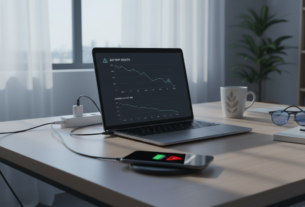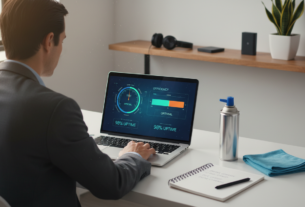

That moment when your phone takes five seconds to open the camera, or your laptop freezes while loading a simple webpage — it’s not just annoying. It disrupts your flow, wastes your time, and plants a persistent thought: “I need a new device.” But in most cases, you don’t. The slowdown isn’t a hardware problem. It’s a software problem with specific, fixable causes.
Modern devices don’t wear out the way mechanical things do. A phone from three years ago has the same processor it had on day one. What changes is the accumulating weight of apps, cached data, background processes, and system updates optimized for newer hardware. Remove that weight, and you’ll frequently find a device that performs nearly as well as the day you bought it.
This guide walks through the most impactful interventions, ordered from easiest to most involved. Start at the top and work down — most people find significant improvement within the first three steps.
Step 1: Clear the Storage Backlog
Storage and speed are directly connected in ways most people don’t realize. When your device’s storage is nearly full (below 10-15% free space), the operating system can’t efficiently manage temporary files, swap memory, or cache frequently used data. Everything slows down as the system constantly juggles limited space.
Quick wins for phone storage:
- Offload photos and videos: Media is almost always the biggest storage consumer. Use Google Photos or iCloud to back up your library, then delete the local copies. A single 4K video can occupy over 1 GB.
- Clear messaging app data: WhatsApp, Telegram, and iMessage accumulate gigabytes of shared media over time. In WhatsApp: Settings → Storage and Data → Manage Storage shows exactly what’s taking space.
- Remove unused apps: Be honest — if you haven’t opened it in 60 days, you don’t need it installed. iOS can offload apps automatically (Settings → App Store → Offload Unused Apps), keeping your data while removing the app binary.
- Clear browser cache: Your browser stores website data locally for faster loading, but this cache grows indefinitely. Clear it monthly: Settings → Safari → Clear History and Website Data (or Chrome → Settings → Privacy → Clear Browsing Data).
Quick wins for laptop storage:
- Empty the downloads folder: This is the junk drawer of your computer. Sort by date, delete anything older than 30 days that you haven’t deliberately saved elsewhere.
- Uninstall programs you don’t use: That video editor you tried once, the PDF converter you used for one document, the game you played for a week — each one occupies storage and may run background processes.
- Run the built-in cleanup tool: Windows has Storage Sense (Settings → System → Storage → Storage Sense). Mac has Manage Storage (Apple menu → About This Mac → Storage → Manage). Both identify large files and offer automated cleanup options.
Step 2: Tame Background Processes
Your device is doing far more than you think, even when the screen is off. Background app refresh, sync services, system indexing, location polling, and push notifications all consume processing power and memory. Individually, each process is negligible. Collectively, they can consume 30-50% of your device’s available resources.
On phones:
- Disable background refresh for non-essential apps: Settings → General → Background App Refresh (iOS) or Settings → Battery → Battery optimization (Android). Keep it enabled only for messaging, email, and navigation — disable it for news, shopping, social media, and games.
- Force-stop misbehaving apps: If a specific app seems to cause slowdowns, force-close it (don’t just swipe away — go to Settings → Apps → [App name] → Force Stop on Android, or offload/reinstall on iOS).
- Restart weekly: A simple restart clears temporary memory, terminates orphaned processes, and resets the system state. It takes 30 seconds and provides a clean slate. Make it a Sunday morning habit.
On laptops:
- Review startup programs: Many applications add themselves to your startup list during installation, launching automatically every time you turn on your computer. On Windows: Task Manager → Startup tab → Disable anything you don’t need immediately at boot. On Mac: System Preferences → Users & Groups → Login Items → Remove non-essential entries.
- Check resource usage: Open Task Manager (Windows: Ctrl+Shift+Esc) or Activity Monitor (Mac: Applications → Utilities) and sort by CPU or Memory usage. If a program you’re not actively using is consuming significant resources, consider closing or uninstalling it.
- Browser tab discipline: Each open browser tab consumes memory — sometimes significantly if the page has animations, videos, or complex scripts. If you routinely have 20+ tabs open, consider using a tab management extension or bookmarking tabs you’re saving “for later.”
Step 3: Update Everything (Then Stop Worrying About It)
Software updates serve two purposes: security patches and performance optimization. Developers routinely fix memory leaks, reduce CPU usage, and improve resource efficiency in updates. Running outdated software means missing these improvements.
The update strategy:
- Operating system updates: Install these promptly — within a week of release. They contain security fixes and system-level optimizations that benefit everything on your device.
- App updates: Enable automatic updates. There’s rarely a reason to delay app updates, and outdated apps are more likely to have bugs that cause slowdowns or crashes.
- Driver updates (laptops): On Windows, check for driver updates periodically through Device Manager or your manufacturer’s support tool (Dell SupportAssist, Lenovo Vantage, HP Support Assistant). Outdated graphics drivers in particular can cause sluggish performance.
One exception:
If your device is very old (5+ years) and running the latest OS update made it slower, consider whether a factory reset on the current version might be better than continuing to update. Newer operating systems are optimized for newer hardware, and the latest version isn’t always the best choice for aging devices.
Step 4: Optimize Your Browser
For most people, the browser is the most-used application on their laptop and an increasingly important one on phones. A slow browser feels like a slow computer — even if the rest of the system is performing fine.
Browser optimization checklist:
- Remove unused extensions: Each browser extension runs its own code on every page you visit. Five extensions can add measurable load time to every page. Remove any you’re not actively using.
- Switch to a lighter browser if needed: If Chrome is sluggish on your older machine, Firefox or Edge often perform better on limited hardware. They use less memory per tab.
- Clear saved data periodically: Accumulated cookies, site data, and cached files can slow browsing over time. A monthly clear-out keeps things snappy.
- Use a content blocker: Ad blockers don’t just remove ads — they prevent heavy tracking scripts and video ads from loading, which can cut page load times by 40-60% on ad-heavy sites.
Step 5: Hardware-Adjacent Fixes
These aren’t hardware replacements — they’re inexpensive adjustments that address physical limitations without buying a new device.
Add more RAM (laptops only):
If your laptop supports user-upgradeable RAM and you’re running with 4 GB or 8 GB, adding more is the single most impactful hardware improvement you can make. Many laptops from the last five years accept standard RAM modules that cost $20-40 for a meaningful upgrade. Check your model’s specifications on crucial.com — they’ll tell you exactly what’s compatible.
Switch to an SSD (older laptops):
If your laptop still uses a traditional hard drive (HDD) — common in machines from before 2018 — replacing it with a solid-state drive (SSD) transforms performance. Boot times drop from minutes to seconds. Applications open almost instantly. It’s the single biggest speed upgrade available for older computers, and SSDs are affordable ($30-50 for 256 GB).
Clean physical vents (laptops):
Laptops accumulate dust in their cooling vents over time. When airflow is restricted, the processor generates heat it can’t dissipate, and it throttles performance to avoid overheating. A can of compressed air directed into the vents every six months prevents this entirely.
Step 6: The Nuclear Option — Factory Reset
If you’ve tried everything above and your device is still noticeably slow, a factory reset provides a genuine fresh start. It removes every accumulated piece of software bloat, every forgotten background process, every configuration error that’s built up over years of use.
Before resetting:
- Back up everything important — photos, documents, any app data you need to keep
- Make a list of the apps you actually use (you’ll be surprised how short it is)
- Save your passwords (make sure your password manager is synced, or write down critical ones)
- Note any specific settings you’ve customized that you want to restore
After resetting:
Only reinstall apps as you need them — not all at once. This natural filter means you’ll only install what you actually use, and your device will stay lean. Many people find their device feels “like new” after a reset, with performance improvements lasting months or years.
When Is It Actually Time for New Hardware?
After trying these interventions, some devices genuinely are at the end of their useful life. Here are honest signs that software optimization can’t fix:
- The device no longer receives security updates (a safety issue, not just a performance one)
- Apps you need have dropped support for your OS version
- Physical degradation — cracked screens, failing buttons, battery that dies in under two hours despite replacement
- After a factory reset and minimal app installation, basic tasks still feel sluggish
But for most people experiencing slowdowns, the answer isn’t at the electronics store. It’s in the settings menu, the storage manager, and a 30-second weekly restart. Try the cheap solutions first — they work far more often than the device manufacturers would like you to believe.

Hi, I’m Isabela! With over 8 years in Information Technology, I’ve helped individuals and businesses navigate the ever-changing world of digital tools. I specialize in device optimization, app recommendations, and online security — breaking down complex tech concepts into clear, actionable advice anyone can follow.