What if the very device designed to connect you could also be a source of physical discomfort? For many older adults, this is a daily reality, but it doesn’t have to be.
Common issues like arthritis, reduced grip strength, or tremors can make tapping and swiping a genuine challenge. These physical hurdles should not prevent anyone from enjoying the benefits of modern technology.
The good news is that help is already built into your device. Major operating systems include a powerful suite of accessibility features specifically designed to enhance comfort.
This guide will walk you through simple yet effective modifications. Our goal is to help seniors maintain full control and independence, turning potential frustration into digital empowerment.
Key Takeaways
- Built-in accessibility features can significantly reduce physical strain during phone use.
- Simple adjustments preserve full functionality and user control.
- These modifications address common challenges like arthritis and reduced dexterity.
- Practical solutions are available for both iPhone and Android platforms.
- Customizing your device can transform your experience from frustrating to comfortable.
Introduction to Smartphone Adjustments for Aging Hands
Staying connected in today’s digital world should not come at the cost of physical comfort. Today’s older generations lead active lives, and their devices must support this vitality.
Why Reducing Hand Strain Matters
Hand strain affects millions of older users. Conditions like arthritis and reduced motor control make standard interactions challenging.
This discomfort can discourage seniors from staying digitally connected with loved ones. Proper adjustments allow comfortable use without fatigue or pain.
The Importance of Accessible Settings in Today’s Devices
Modern devices include built-in accessibility features that address specific needs. These tools help family members empower their loved ones.
Manufacturers recognize that accessibility benefits all users. Each new release brings more intuitive and customizable options.
| Benefit Area | Before Adjustments | After Adjustments | Impact Level |
|---|---|---|---|
| Communication | Limited due to discomfort | Regular contact with family | High |
| Independence | Relies on assistance | Self-managed appointments | High |
| Daily Usage | Short sessions with pain | Extended comfortable use | Medium |
| Digital Confidence | Hesitant and frustrated | Confident and engaged | High |
These features create pathways for meaningful digital engagement. They help older adults remain active participants in our connected world.
Identifying Common Causes of Hand Strain
Understanding the root causes of hand strain is the first step toward comfortable device use. Many factors contribute to this discomfort, ranging from physical conditions to technical design choices.
Physical and Usage-Related Factors
Physical conditions like arthritis and reduced grip strength make precise interactions difficult. Tremors and joint stiffness further complicate tapping and swiping motions on the screen.
Usage patterns also play a significant role. Holding a device for extended periods causes fatigue. Reaching across large screens strains muscles and joints.
Many seniors spend considerable time trying to read small text. This constant effort leads to discomfort over time.
How Traditional Settings Can Exacerbate Discomfort
Default configurations often work against comfortable use. Standard touch sensitivity requires firm, precise taps that challenge those with motor issues.
Small font sizes force users to constantly pinch and zoom. This repetitive motion strains hand muscles. The weight of modern phones also encourages awkward grip positions.
Without proper accessibility settings, seniors face accidental touches and missed selections. These technical barriers increase frustration and physical effort.
These practical tips help identify which adjustments will provide the most relief. Customizing your device’s settings can transform your experience from frustrating to comfortable.
Exploring Adaptive Smartphone Settings for Aging Hands
Beyond basic adjustments, today’s mobile platforms include sophisticated control alternatives. These advanced tools provide creative solutions for comfortable operation.
Understanding Customizable Accessibility Features
Modern devices offer extensive menus of accessibility settings tailored to individual needs. Both major platforms provide powerful options beyond vision support.
These accessibility features transform traditional interaction methods. They reduce physical demand while maintaining full control over the device.
Overview of Switch Access and Alternate Interaction Methods
Switch Control (iPhone) and Switch Access (Android) represent innovative accessibility features. They allow navigation using external switches or facial gestures instead of touch.
The camera-based option enables six distinct facial movements for hands-free control. Users can adjust gesture sensitivity in the settings for reliable operation.
These methods dramatically reduce strain on hands and fingers. They make technology accessible despite physical challenges like arthritis or tremors.
Optimizing Touch and Display Settings for Comfort
Fine-tuning how your device responds to touch can dramatically improve daily comfort. These adjustments reduce the physical effort needed for successful interactions.
Both major platforms offer powerful customization options. They transform challenging operations into comfortable experiences.
Adjusting Touch Accommodations and Tap Duration
Touch accommodation features modify how your screen interprets contact. They reduce the precision required for successful taps.
iPhone users can extend the duration needed before a touch registers. This prevents accidental activations from unsteady movements.
Android offers similar customization through Touch & hold delay options. Users choose from short, medium, or long duration settings.
Enhancing Font Size and Screen Contrast
Increasing text size represents one of the most impactful modifications. It eliminates constant zooming and reduces eye strain.
Android users access font size adjustments through the Display category. Options range from Normal to Large or Huge for better readability.
iPhone provides comprehensive display and text size customization. Users can adjust font, enable bold text, and modify contrast settings.
| Setting Type | Before Adjustment | After Adjustment | Comfort Improvement |
|---|---|---|---|
| Touch Duration | Accidental touches common | Deliberate taps only | High |
| Text Size | Constant zooming required | Clear reading at normal distance | High |
| Screen Contrast | Eye strain from poor visibility | Sharp, easy-to-read display | Medium |
| Touch Sensitivity | Multiple failed attempts | First-tap success | High |
These display modifications work together to create a more forgiving interaction environment. They respect physical limitations while maintaining full control.
Leveraging Voice Control and Dictation Features
Speaking commands to your device represents a powerful alternative to physical interaction. This technology transforms how users operate their phones when manual input becomes challenging.
Enabling Voice Commands for Hands-Free Operation
Both major platforms include sophisticated voice recognition systems. iPhone users activate Siri with “Hey, Siri,” while Android responds to “Hey, Google.”
These assistants handle numerous tasks through spoken commands. Users can make calls, send messages, and open apps without touching the screen. This accessibility feature dramatically reduces hand strain during daily use.
Using Dictation to Reduce Reliance on Manual Typing
Voice-to-text conversion eliminates the need for keyboard typing. Enable dictation in your device’s settings to access this capability.
A microphone icon appears whenever text entry is required. Simply speak your message naturally. The system converts speech into written text accurately.
Modern devices even support punctuation commands. Say “comma” or “period” to format your text properly. Recent updates include auto-punctuation for seamless dictation.
| Voice Feature | iPhone Capability | Android Capability | Hands-Free Benefit |
|---|---|---|---|
| Voice Assistant | Siri with “Hey, Siri” | Google Assistant | High – Full device control |
| Dictation | Keyboard microphone icon | Keyboard microphone icon | High – No typing required |
| Punctuation | Voice commands or auto-punctuation | Voice commands or auto-punctuation | Medium – Reduces editing |
| App Control | Voice Control feature | Voice Access feature | High – Complete navigation |
These voice solutions provide comprehensive alternatives to manual input. They maintain full functionality while eliminating physical strain.
Simplifying Navigation Through Home Screen Customizations
Customizing the initial display can dramatically reduce the physical effort needed for daily navigation. The main interface sets the tone for the entire user experience.
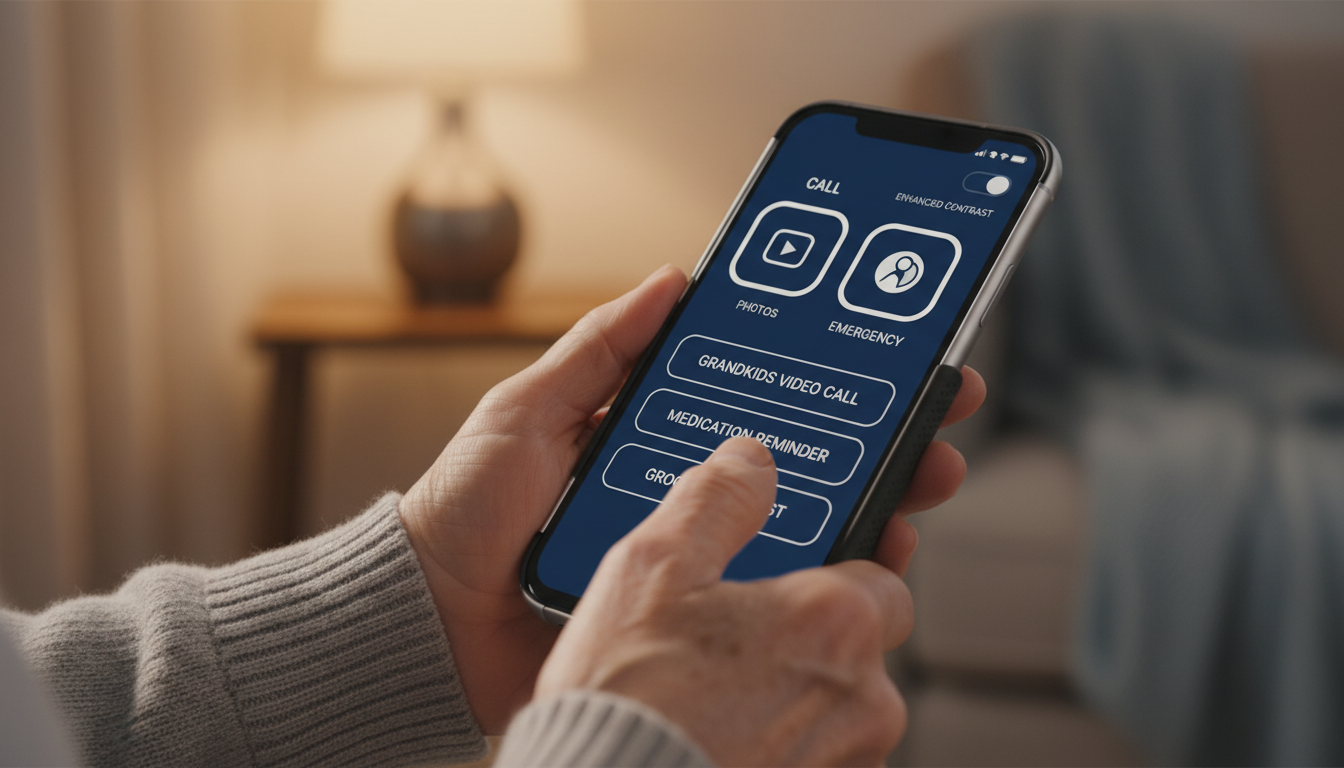
Many devices offer built-in simplified modes that replace complex layouts. These alternatives feature larger icons and reduced visual clutter.
Implementing Easy Mode Launchers and Intuitive Layouts
Third-party applications like Wiser and Necta provide excellent home screen solutions. They transform the standard interface into a senior-friendly environment.
After installation, users press the home button to select their preferred launcher. Choosing “Always” sets it as the default home screen app.
These specialized interfaces follow minimalist design principles. They present only essential functions with enlarged touch targets.
Limiting Clutter: Selecting Essential Apps Only
For those preferring their original home screen, manual curation achieves similar benefits. Removing unnecessary items creates a cleaner, more focused display.
A simplified home screen might include just the phone, messaging, camera, and browser apps. This approach reduces cognitive load and decision fatigue.
Family members can help configure these adjustments during setup. The result is an immediately accessible interface that requires minimal explanation.
This streamlined approach decreases scrolling and menu navigation. Users spend less time searching, which directly translates to reduced hand strain.
Securing Your Device with Preventive Measures
Security measures safeguard the personalized adjustments that make your device comfortable to use. These protective steps ensure your carefully configured setup remains stable over time.
Preventive security protects against accidental modifications. They maintain the user-friendly environment that reduces physical strain during daily operation.
Preventing Accidental Changes with AppLock and Similar Tools
Applications like AppLock create a protective layer for your device. These tools restrict access to complex system menus and potentially confusing applications.
After installation, users set up administrator permissions and create a secure PIN. They can then lock sensitive features like WiFi controls and synchronization options.
This approach prevents common scenarios where users accidentally navigate into complicated settings. It eliminates the frustration of trying to restore previous configurations.
The home button and essential functions continue working normally. Users retain full access to calling, messaging, and approved applications.
For caregivers, these security tools reduce support calls about unexpected changes. They create a stable experience that builds confidence rather than confusion.
Conclusion
Modern devices are powerful tools for maintaining connection and independence. The wide range of accessibility features available can transform a standard phone into a personalized aid.
From visual alerts like LED flashes for calls to sound recognition for important noises, these tools address diverse needs. They help seniors stay aware and engaged with their surroundings.
Family members can play a key role in exploring these options within the device’s menu. Simple tips and adjustments make the technology much more approachable.
Ultimately, these inclusive designs benefit all users. They ensure everyone can enjoy comfortable and confident use of their devices.

Hi, I’m Isabela! With over 8 years in Information Technology, I’ve helped individuals and businesses navigate the ever-changing world of digital tools. I specialize in device optimization, app recommendations, and online security — breaking down complex tech concepts into clear, actionable advice anyone can follow.