Does your phone or tablet feel slower than it used to? Many people experience this frustration as their technology ages. The good news is that you don’t always need to buy new hardware when your device starts to lag.
Simple software adjustments can make a big difference in how your phone operates. By optimizing apps and system settings, you can bring back that smooth feel. This approach saves you money and keeps functional electronics out of landfills.
Both Android and iOS devices respond well to these maintenance techniques. With a little time invested, you can extend your device’s useful life significantly. This is an environmentally friendly way to get more value from your current technology.
Key Takeaways
- Software optimization can effectively restore smooth operation to aging devices
- Simple adjustments to apps and settings require minimal time investment
- These techniques work on both Android phones and Apple iPhones/iPads
- Extending your device’s lifespan saves money and reduces electronic waste
- Proper maintenance can delay the need for hardware replacement
- Realistic expectations help maximize satisfaction with older technology
- Regular system maintenance prevents gradual performance decline
Understanding Device Performance and Aging
As technology matures, certain telltale behaviors emerge that indicate your device needs attention to maintain optimal operation. Recognizing these patterns early helps you address issues before they become frustrating.
Signs of Sluggish Performance
Your phone may start showing clear indicators of strain. Delayed app launches and stuttering animations are common red flags. Scrolling through social media feeds becomes less smooth.
Basic functions take longer to respond. The camera might hesitate when opening. Keyboard input could lag behind your typing speed. These symptoms suggest your system resources are being stretched.
Common Causes in Older Hardware and Software
Several factors contribute to gradual slowdown. App caching accumulates over time, consuming valuable memory. Background processes from various apps constantly run, draining resources.
Modern software features demand more from legacy hardware. A device with limited RAM struggles with multitasking. Storage technology in aging models reads data slower than current standards.
Network connectivity issues can also create the illusion of poor performance. Apps trying to sync data in the background add to the strain. The combination of these factors creates a compounding effect on user experience.
Quick Wins: Hard Restart and Cache Clearing
Many common phone issues can be resolved with two straightforward techniques. These methods require minimal time and technical knowledge. They address temporary system glitches and accumulated data fragments.
How a Hard Restart Can Refresh Your Device
A hard restart clears temporary memory issues and resets network connections. This simple action purges glitches that develop during extended operation. It represents the quickest first step toward better responsiveness.
Follow these specific button sequences for your phone:
- iPhone: Press and release volume up, then volume down. Hold the side button until the Apple logo appears.
- Android: Press and hold both power and volume down buttons. Wait for shutdown, then restart.
Steps to Clear Cache on iOS and Android
Cache clearing removes temporary files that accumulate from app usage. These data fragments consume storage space and can cause sluggish behavior. The process differs between operating systems.
For iPhone users, navigate to Settings > Safari > Clear History and Website Data. Individual app cache requires offloading the entire application. This preserves your settings while removing temporary files.
Android offers more granular control through Settings > Storage > Apps. Select each app and tap Clear Cache. This action doesn’t affect your login credentials or saved data.
| Method | iOS Steps | Android Steps |
|---|---|---|
| Hard Restart | Volume up, volume down, side button sequence | Power + volume down button combination |
| Browser Cache | Settings > Safari > Clear History | Chrome menu > Clear Browsing Data |
| App Cache | Offload entire app | Settings > Storage > Apps > Clear Cache |
These maintenance steps take only minutes to complete. They deliver immediate improvements in how your phone operates. Regular application keeps your system running smoothly.
Optimizing Apps and Removing Clutter
Your app collection directly impacts how responsive your device feels during daily use. Many people accumulate applications they rarely open. These unused programs consume storage space and run background processes.
Uninstalling or Offloading Unused Apps
iPhone users should visit Settings > General > [Device] Storage. This screen shows which applications you’re using least. You can delete apps completely or use the offload feature.
Offloading removes the app but saves your settings and data. Android offers similar functionality through Settings > Storage > Apps. The Auto Archive feature can automatically remove data from unused applications.
Leveraging Lite and Go Versions for Efficiency
Many popular apps have lightweight alternatives. Google’s Go ecosystem includes Maps Go, YouTube Go, and Gmail Go. These versions use less memory and data.
Social media platforms like Facebook and Twitter offer Lite versions. Progressive Web Apps provide another option for services like Instagram and Lyft. They run through your browser but feel like native applications.
Third-party alternatives often work better than official apps. Options like BaconReader for Reddit consume fewer system resources. Choosing lighter applications keeps your phone running smoothly.
Improving Performance on Older Devices
Beyond basic cleaning, deeper software management offers significant gains. Proactive control over your system and apps can transform how your phone operates daily.
This approach focuses on optimization rather than just clearing space. It makes your device feel more responsive.
Keeping Your Software and Apps Updated
Regular updates are crucial. They deliver the most optimized version of your operating system. Manufacturers release patches that fine-tune how the system manages resources.
Check for updates manually in your settings menu. Navigate to Settings > System > Software updates. This ensures you do not miss important improvements.
Google Play Services receives separate updates via the Play Store. These updates enhance many modern Android features. They boost overall device operation without a full system update.
Consider turning off automatic app updates. This prevents background downloads from slowing your phone down. Instead, update apps manually at a convenient time.
Utilizing Custom Launchers and System Tweaks
Custom launchers like Nova Launcher replace the default home screen. They are lighter and consume fewer system resources. This is a great way to organize your apps more effectively.
Remove live wallpapers and widgets from your home screen. They constantly use processing power in the background. A minimal layout reduces the burden on your phone.
Enable Developer Options by tapping Build number seven times in Settings > About Phone. This unlocks powerful system tweaks.
Speed up animations within Developer Options. Set Window, Transition, and Animator scales to 0.5x. This makes the device feel snappier by reducing wait time between actions.
Avoid task killer apps. They often harm performance rather than help. Your system already manages memory efficiently.
| Update Method | Primary Benefit | Settings Path |
|---|---|---|
| Manual System Update | Installs latest performance patches | Settings > System > Software Update |
| Google Play Services Update | Enhances core Android features | Play Store > My Apps & Games |
| Manual App Updates | Prevents background slowdowns | Play Store > Menu > Settings |
Managing Storage and Memory Resources
Free space on your phone isn’t just about storage capacity—it’s about maintaining speed. When internal storage runs low, your system struggles to find room for temporary files and app operations. This creates noticeable lag throughout your device.
Photos and videos typically consume the most storage space. High-resolution images and 4K videos accumulate rapidly over time. They occupy gigabytes of precious internal memory that your phone needs for smooth operation.
Offloading Photos and Files to Free Up Space
Check your current storage usage to identify problem areas. iPhone users can navigate to Settings > General > [Device] Storage > Photos. Android users should visit Settings > Storage to review image and video space.
Google Photos offers an excellent cloud solution for offloading media. It provides free storage for up to 16MP photos and 1080p videos. The service includes automatic backup and AI-powered search functions.
Setting up automatic backup requires signing into your Google account. Tap the account icon, then navigate to Google Photos Settings. Enable Back Up & Sync and ensure proper photo access permissions.
For comprehensive storage management, try Files by Google. This lightweight app analyzes your storage usage and recommends specific files to remove. It facilitates cloud backups and offers efficient file management capabilities.
Clearing Background Processes and App Data
Android 8.0+ includes built-in storage optimization tools. Access them through Settings > Storage where the system identifies cached data and unused apps. You can review and remove unnecessary files with just a few taps.
Clearing app data periodically removes accumulated information that apps store over time. This includes chat histories, downloaded content, and cached files. These items consume storage space without providing ongoing value.
Background processes require regular attention since apps continue storing data even when you’re not using them. Conduct storage audits monthly to maintain adequate free space. This practice allows your system to operate smoothly without resource constraints.
Enhancing Battery Life and System Efficiency
System efficiency depends heavily on managing both power consumption and background activities. These two factors work together to determine how smoothly your phone operates throughout the day.
Evaluating and Maintaining Battery Health
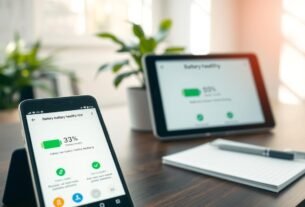
Your battery’s condition plays a big part in overall operation. iPhone users can check battery health through Settings > Battery > Battery Health & Charging. A reading of 80% or higher indicates optimal capacity.
Android devices typically lack built-in battery health percentages. Downloading the AccuBattery app provides valuable insights into capacity and degradation. When health drops significantly below 80%, replacement can dramatically restore operation.
Adjusting Settings to Reduce Background Resource Use
Enable Data Saver modes across your applications. Chrome offers Lite mode, while Twitter, Facebook, and YouTube have similar features. These settings limit automatic content loading and background data syncing.
Android 7.0+ includes a system-wide Data Saver accessible from quick settings. This severely restricts which apps can access networks when not in active use.
Disable hands-free digital assistants like Google Assistant’s voice activation and Samsung’s Bixby Voice. This eliminates constant background listening processes that consume power.
Review app permissions through Settings > Privacy > Permission manager. Revoke unused capabilities, particularly physical activity and location access. This reduces background wake-ups and conserves system resources.
Conclusion
Effective device management transforms frustrating slowdowns into smooth daily operation. The comprehensive list of optimization steps provides a clear path to better responsiveness.
Starting with simple things like cache clearing and progressing to advanced system tweaks gives you control. This systematic way allows you to identify which changes deliver the most impact for your specific phone.
Regular maintenance prevents gradual decline over time. Implementing these techniques extends your device’s useful lifespan significantly. You’ll enjoy reliable operation for everyday tasks without replacement costs.
The knowledge gained from this guide serves you well with future technology investments. You now possess the skills to maintain optimal operation throughout any device’s lifecycle.

Hi, I’m Isabela! With over 8 years in Information Technology, I’ve helped individuals and businesses navigate the ever-changing world of digital tools. I specialize in device optimization, app recommendations, and online security — breaking down complex tech concepts into clear, actionable advice anyone can follow.